EasyGaugeBasic
Support |
|
|---|---|
Required licenses |
EasyGauge |
Recommended images |
Any image from the folder |
Location |
|


Purpose
This sample program demonstrates how to:
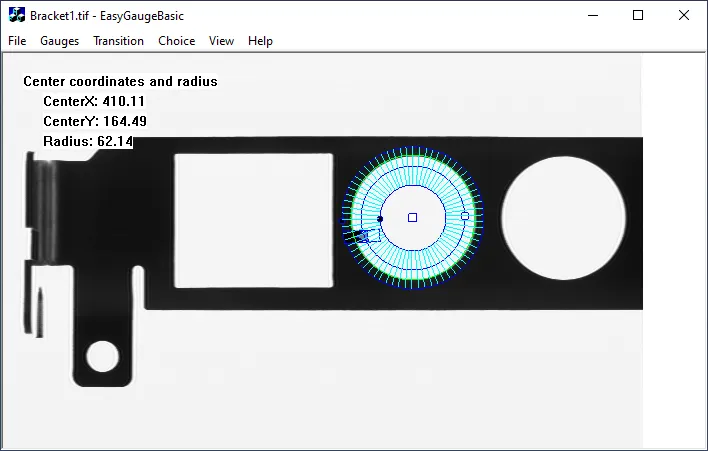
Load an image and apply a gauge from EasyGauge, chosen between a Point Gauge, a Line Gauge, a Rectangle Gauge, a Circle Gauge, a Wedge Gauge and a Polygon Gauge.
Implement graphical edition of the gauge geometry.
Set and display the main parameters of the gauges: the transition polarity, the choice of measure and various display options.
Code highlights
Set the transition type to
ETransitionType_Bwand perform the measurement.m_PointGauge.SetTransitionType(ETransitionType_Bw); m_PointGauge.Measure(&m_Image);
Draw the current gauge.
PointGauge.SetZoom(m_fZoomFactor);
PointGauge.SetPan(m_OrgX, m_OrgY);
PointGauge.Draw(drawAdapter);

// optional draws
if (m_bViewResults)
  PointGauge.Draw(drawAdapter, EDrawingMode_Actual);

if (m_bViewSource)
  PointGauge.Draw(drawAdapter, EDrawingMode_Position);

if (m_bViewFiltered)
  PointGauge.Draw(drawAdapter, EDrawingMode_Match);

if (m_bViewPaths)
  PointGauge.Draw(drawAdapter, EDrawingMode_SampledPaths);

if (m_bViewPoints)
  PointGauge.Draw(drawAdapter, EDrawingMode_SampledPoints);