Detailed Usage
Reading a Text
The core class of EasyDeepOCR is the ETextReader .NET Python.
In order to read a text, create a new ETextReader instance and initialize it using ETextReader::Initialize() .NET Python. To read the texts in a loaded image, use ETextReader::Read() .NET Python. This method will return a vector of EasyDeepOCR::EText .NET Python.
Note
When the topology is not specified, the returned EText .NET Python always contains a single ETextLine .NET Python.
Note
The method ETextReader::Initialize .NET Python is designed to pre-allocate memory and to load the necessary resources needed by the ETextReader .NET Python.
This initialization can be time-consuming, but it must only be performed once after an instantiation, a loading from memory or a copy from another instance.
The duration of the process ranges from a few seconds to several minutes, depending on the execution settings and the computing platform.
See also
Getting a Score
Each ETextLine .NET Python and EText .NET Python returned by the ETextReader .NET Python has a score attached to it.
The score of an ETextLine
The score of an ETextLine .NET Python:
Is the arithmetic mean of the detection score and the recognition score.
Is in the interval
[0.0; 1.0].You can use it to get an approximation of the reading quality of the underlying text.
Use ETextLine::GetScore .NET Python to get the score of an ETextLine.
The score of an EText
The score of an EText .NET Python (that is composed of multiple ETextLine .NET Python):
Is the average of all line scores
Is in the interval
[0.0; 1.0].You can use it to get an approximation of the reading quality of the underlying lines.
Use EText::GetScore .NET Python to get the score of an EText.
See also
Drawing an ETextLine or an EText
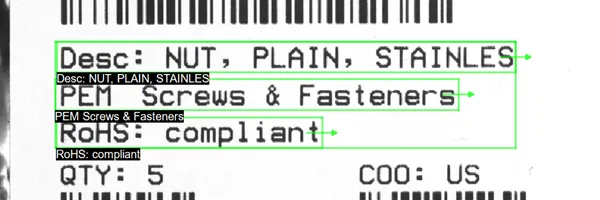
Use the methods
Drawto graphically draw anETextLine.NET Python or anEText.NET Python.Use the class
ETextDrawingParameters.NET Python to set the drawing attributes and display:The text box.
The text line box.
The text string.
The text direction, with a configurable arrow length.
See also
Specifying a Topology
A topology is a canvas that a given string can satisfy, or not.
Specifying a topology improves the relevance of the outputs of ETextReader .NET Python because only the texts that fit into the canvas are returned. Before applying this filter, the ETextReader .NET Python tries to correct a few small mistakes in order to prevent excessive filtering. In addition, the topology triggers the grouping of lines into texts. In other words, an ETextReader .NET Python returns EText .NET Python composed of several ETextLine .NET Python only when several lines are required by the topology.
In practice, a topology is an instance of the class ETopology .NET Python, which is basically a vector of ETopologyLine .NET Python, with the nth entry referring to the nth text line. As mentioned previously, a topology thus never matches a text whose number of lines is different from the size of the vector ETopologyLine .NET Python.
The canvas mentioned in the first paragraph must be specified inside the class ETopologyLine .NET Python and in particular, by setting its “format string”. This “format string” is a string that can be interpreted using:
The eVision simplified format
A standard regular expression format.
See also
The eVision Simplified Format
Each character from the “format string” represents a “character class”.
An
ETextLine.NET Python satisfies theETopologyLine.NET Python if each of its characters belongs to the corresponding “character class” specified by the “format string”.The eVision simplified format is composed of the following eight “character classes”:
A: an uppercase ASCII letter:ABCDEFGHIJKLMNOPQRSTUVWXYZa: a lowercase ASCII letter:abcdefghijklmnopqrstuvwxyz0: a digit:0123456789P: an ASCII punctuation character:!"#$%&\'()*+,-./:;<=>?@[\]^_`{|}~V: a character belonging to either A or 0X: a character belonging to either A, a, 0 or PS: a character belonging to either X or a space
“Literal Groups”
You can specify a “literal group”, that is a group of characters that should appear verbatim in the
ETextLine.NET Python.These “literal groups” must be included inside square brackets
[]. Note that square brackets themselves must not appear in a literal group.
For more flexibility, you can use a “range quantifier” or an “exact quantifier” just after a “character class”:
Add a “range quantifier” as
{m,n}to specify that the preceding “character class” must be matched betweenmandntimes.Add an “exact quantifier” as
{n}to specify that the preceding “character class” must be matched exactlyntimes.
Examples
The “format string”
[Lot:] 00[-]0{1,3}matches all the following strings:Lot: 12-783Lot: 74-1Lot: 09-447Lot: 85-75
The “format string”
[Exp:] 00[/]00[/]0{4}matches all the following strings:Exp: 06/07/2024Exp: 01/03/1995Exp: 75/42/0065Exp: 01/22/1569
The Regular Expression Format
The “format string” is a regular expression written using the ECMAScript regular expression grammar.
To learn how to use the regular expression format, see the Regex 101 web application.
This grammar is described in the ECMAScript Language Specification, ECMA-262, Chapter 15 part 10, RegExp (Regular Expression) Objects.
Setting the Text Angle
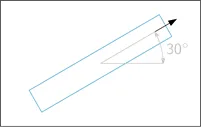
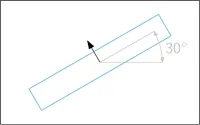
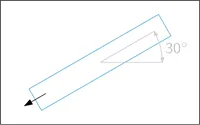
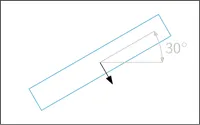
The text angle is an optional parameter of ETextReader .NET Python that controls the reading direction of the texts that are returned.
Use
ETextReader::SetTextAngle.NET Python to set an angle andETextReader::GetHasTextAngle.NET Python to check if an angle is specified.When the text angle is set,
ETextReader.NET Python determines the direction of the texts by selecting the orientation that is closest to the specified angle among the four cardinal directions.
Hint
This is particularly useful when the approximate orientation of the texts is known.
Text angle |
10° |
80° |
-120° |
-35° |
Reading direction |
|
|
|
|
Use
ETextReader::UnsetTextAngle.NET Python to delete any set angle.When the text angle is not set,
ETextReader.NET Python automatically chooses the reading direction among the four cardinal directions based on its internal heuristics.
Performing an Optimization
You can optimize the ETextReader .NET Python for your own specific use case.
After this optimization:
The reader only returns the texts that belong to the same “customer use case” as the one used for the optimization.
The processing speed may increase.
EasyDeepOCR may find challenging texts that were not detected before the optimization.
This optimization is based on the method ETextReader::Optimize .NET Python that requires an instance of the class ESampleList .NET Python.
The class
ESampleList.NET Python is a container that gathers all the information about the “customer use case”.Note
See section Building a Sample List.
Considering that the ESampleList .NET Python is filled, the optimization only requires a few lines of code, as illustrated below.
#include <eVision/EasyOcr/EasyDeepOCR/ETextReader.h>
using namespace eVision;
namespace EDO = eVision::EasyDeepOCR;
// Create an ESample vector
std::vector<EDO::ESample> samples;
// Fill the vector
// ...
// Create an ESampleList instance
EDO::ESampleList sampleList;
// Set the samples
sampleList.SetSamples(samples);
// Create an ETextReader instance
EDO::ETextReader reader;
// Initialize the ETextReader
reader.Initialize();
// Optimize the ETextReader
EDO::EOptimizationReport report = reader.Optimize(sampleList);
// ...
using eVision;
using EDO = eVision.EasyDeepOCR;
// Create an ESample vector
EDO.ESample[] samples = new EDO.ESample[] { } ;
// Fill the vector
// ...
// Create an ESampleList instance
EDO.ESampleList sampleList = new EDO.ESampleList();
// Set the samples
sampleList.Samples = samples;
// Create an ETextReader instance
EDO.ETextReader reader = new EDO.ETextReader();
// Initialize the ETextReader
reader.Initialize();
// Optimize the ETextReader
EDO.EOptimizationReport report = reader.Optimize(sampleList);
// ...
import eVision
from eVision import EasyDeepOCR as EDO
# Create an ESample vector
samples = []
# Fill the vector
# ...
# Create an ESampleList instance
sampleList = EDO.ESampleList()
# Set the samples
sampleList.Samples = samples
# Create an ETextReader instance
reader = EDO.ETextReader()
# Initialize the ETextReader
reader.Initialize()
# Optimize the ETextReader
report = reader.Optimize(sampleList);
# ...
Splitting the Pipeline
Hint
While the function ETextReader::Read .NET Python is suitable for straightforward OCR tasks, the split pipeline becomes beneficial when you require a custom processing for a specific use case.
The pipeline
ETextReader::Read.NET Python consists of 3 distinct functions that are invoked sequentially:ETextReader::Localize.NET Python detects the text areas.ETextReader::Recognize.NET Python converts the detected areas to strings.ETextReader::Merge.NET Python combines the text lines based on a topology, if specified.
These 3 functions provide an enhanced control through capabilities such as:
Inserting custom processing between steps.
Skipping unnecessary steps.
Accessing intermediate results.
Applying different parameters for specific regions.
See also
Using ETextReader::Localize
The method ETextReader::Localize .NET Python identifies regions in an image that contain text lines and returns them as rectangles.
This method is appropriate for identifying the locations of text lines in an image without reading their contents.
This approach is particularly useful in scenarios where certain regions might need filtering based on size, position or other geometric properties before proceeding with the recognition.
It also serves as an excellent first step when building a custom OCR pipeline that requires specialized handling of different text regions.
Using ETextReader::Recognize
The method ETextReader::Recognize .NET Python accepts an ERegion .NET Python or an ERectangle .NET Python as input and outputs a ETextLine .NET Python.
It can work with either a miniature image containing only text or a region within a larger image.
This method is particularly valuable when working with images that contain text in specific areas requiring different processing parameters, such as different topology constraints.
Using ETextReader::Merge
The method ETextReader::Merge .NET Python combines recognized multiple ETextLine .NET Python into structured objects EText .NET Python based on the defined ETopology .NET Python.
This method becomes valuable when working with images where the relationship between the text lines carries a semantic meaning.
By organizing the text according to the topology, the method
ETextReader::Merge.NET Python preserves the logical relationships between the different text elements.