Flexible Masks
ROIs vs flexible masks
ROIs and masks restrict processing to part of an image:
Using Regions of Interest accelerates processing by reducing the number of pixels. eVision supports hierarchically nested rectangular ROIs.
Flexible Masks are recommended to process disconnected ROIs or non-rectangular shapes. They are supported by some functions of EasyObject and EasyImage.
Flexible masks
A flexible mask is a BW8 image with the same height and width as the source image. It contains shapes of areas that must be processed and ignored areas (that will not be considered during processing):
All pixels of the flexible mask having a value of 0 define the ignored areas.
All pixels of the flexible mask having any other value than 0 define the areas to be processed.
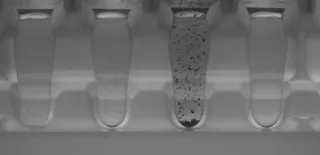
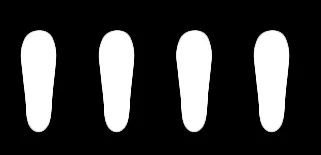
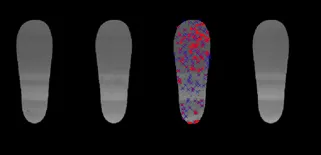
A flexible mask can be generated by any application that outputs BW8 images by some functions of EasyObject and EasyImage.
Flexible masks in EasyImage
Simple steps to use flexible masks in EasyImage
Call the functions from EasyImage that take an input mask as an argument. For instance, one can evaluate the average value of the pixels in the white layer and after in the black layer.
Display the results.
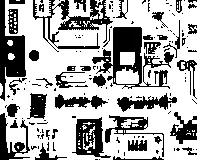
Resulting image
EasyImage functions that support flexible masks
EImageEncoder::Encode.NET Python has a flexible mask argument for BW1, BW8, BW16, and C24 source imagesEasyImage::Histogram.NET Python (functionEasyImage::HistogramThreshold.NET Python has no overload with mask argument)EasyImage::RmsNoise.NET Python,EasyImage::SignalNoiseRatio.NET PythonEasyImage::Overlay.NET Python (no overload with mask argument for BW8 source images)EasyImage::ProjectOnAColumn.NET Python,EasyImage::ProjectOnARow.NET Python (vector projection)EasyImage::ImageToLineSegment.NET Python,EasyImage::ImageToPath.NET Python (vector profile)
Flexible masks in EasyObject
A flexible mask can be generated by any application that outputs BW8 images or uses the eVision image processing functions.
EasyObject can use flexible masks to restrict blob analysis to complex or disconnected shaped regions of the image.
If an object of interest has the same gray level as other regions of the image, you can define “keep” and “ignore” areas using flexible masks and EImageEncoder::Encode .NET Python functions.
A flexible mask is a BW8 image with the same height and width as the source image.
A pixel value of 0 in the flexible mask masks the corresponding source image pixel so it doesn’t appear in the encoded image.
Any other pixel value in the flexible mask causes the pixel to be encoded.
EasyObject functions that create flexible masks
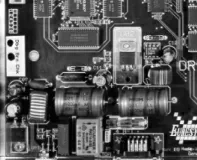
Source image
ECodedImage2.RenderMask: from a layer of an encoded image
To encode and extract a flexible mask, first construct a coded image from the source image.
Choose a segmentation method (for the image above the default method
GrayscaleSingleThresholdis suitable).Select the layer(s) of the coded image that should be encoded (i.e. white and black layers using minimum residue thresholding).
Make the mask image the desired size using
mask.SetSize(sourceImage.GetWidth(), sourceImage.GetHeight()).Exploit the flexible mask as an argument to
ECodedImage2::RenderMask.NET Python.
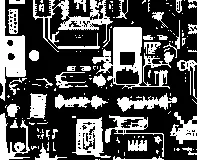
BW8 resulting image that can be used as a flexible mask
ECodedElement.RenderMask: from a blob or hole
Select the coded elements of interest.
Create a loop extracting a mask from selected coded elements of the coded image using
ECodedElement::RenderMask.NET Python.Optionally, compute the feature value over each of these selected coded elements.
BW8 resulting image that can be used as a flexible mask
EObjectSelection.RenderMask: from a selection of blobs
EObjectSelection::RenderMask .NET Python can, for example, discard small objects resulting from noise.
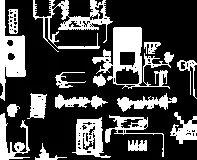
BW8 resulting image that can be used as a flexible mask
Example: Restrict the areas encoded by EasyObject
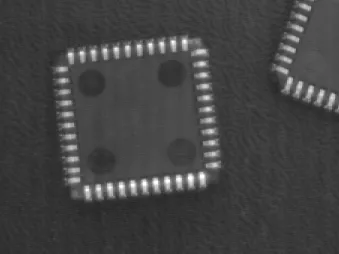
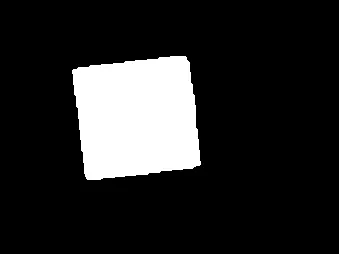
Declare a new
ECodedImage2.NET Python object.Setup variables: first declare source image and flexible mask, then load them.
Declare an
EImageEncoder.NET Python object and, if applicable, select the appropriate segmenter. Setup the segmenter and choose the appropriate layer(s) to encode.Encode the source image. Encoding a layer with just the area in the flexible mask is then pretty straightforward.
We see that the circles are correctly segmented in the black layer with the grayscale single threshold segmenter (EGrayscaleSingleThresholdSegmenter.NET Python):
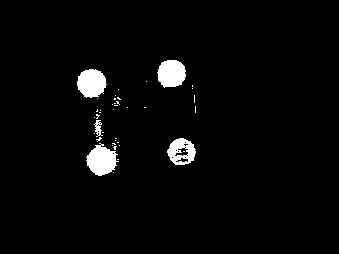
Select all objects of the coded image.
Select objects of interest by filtering out objects that are too small.
Display the blob feature by iterating over the selected objects to display the chosen feature.