Find Matches
Once a pattern is learned, it can be found in an image by calling
EPatternFinder::Find.NET Python.This returns a vector of
EFoundPattern.NET Python. EachEFoundPatterncontains:A
Score.NET Python, between-1and1, see Contrast Mode for more details.A
Center.NET Python,Scale.NET Python andAngle.NET Python.The
index.NET Python of the corresponding learned pattern when several are learned.A
draw function.NET Python that optionally drawsthe center.NET Python,the feature points.NET Python,the bounding box.NET Python andthe region used for learning.NET Python (if there was one).
Hint
To speed up the search process, you can also use multicore processing. This is especially interesting when you use EasyFind with angle and scale tolerances.
Find Parameters
The following parameters are set and used in the process find process.
Maximum Number of expected Instances
Use the parameter EPatternFinder::SetMaxInstances .NET Python to set the maximum number of instances that EasyFind returns.
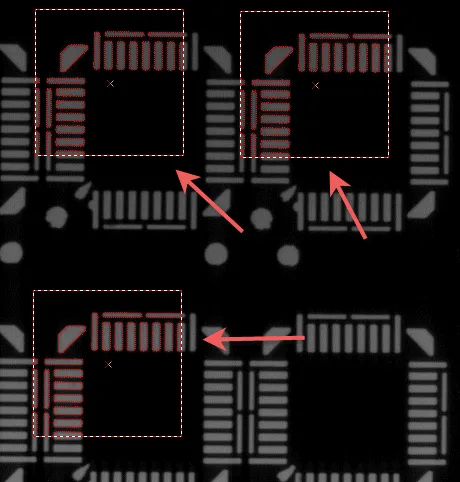
3 instances of the same pattern found in an image
Contrast Mode
EasyFind ranks potential matches based on a score. The score used depends on the EFindContrastMode .NET Python. The contrast mode, may be:
Normal: the score is normalized between-1and1:1means a perfect match with the same contrast as the pattern.0means no match.-1means a perfect match but with the inverted contrast compared to the pattern.
Inverse: the score is normalized between-1and1:1means a perfect match with the inverted contrast compared to the pattern.0means no match.-1means a perfect match but with the same contrast as the pattern.
Any: the score is normalized between0and1:1means a perfect match with the same contrast or the inverted contrast compared to the pattern.0means no match.
By default, the score is computed as the normalized sum of the correlation of each feature point.
The feature points with a high gradient have more weight.
Incomplete instances get a relatively high score.
In addition, a Point by point variant also exists. In that case, the score is computed as the mean of the normalized correlation of each feature point.
Each feature point has the same weight.
Images with irregular lighting and instances with variable contrast get a relatively high score.
To use
Point by pointvariant, addPointByPointto the name of the enum, i.e.EFindContrastMode_PointByPointNormalinstead ofEFindContrastMode_Normal.
Use the parameter EPatternFinder::SetContrastMode .NET Python to select the contrast mode. The default value is EFindContrastMode_Normal .NET Python.
Minimum Score
The score depends on the EFindContrastMode .NET Python, see above.
Use the parameter EPatternFinder::SetMinScore .NET Python to set the minimum score for an instance to be accepted and returned. The default value is -1.0 (no score filtering).
Angle and Scale
The angle and scale ranges are defined by a bias and a tolerance:
For example, with an angle bias of 20° and an angle tolerance of 5°, EasyFind returns instances with an angle between 15° and 25° with respect to the learned pattern (20° ± 5°).
The default values are
1.0for the scale bias and0.0for the other parameters. That means EasyFind returns only patterns with no rotation nor scaling.Use the parameters
EPatternFinder::SetAngleBias.NET Python andEPatternFinder::SetAngleTolerance.NET Python to set the angle range.Use the parameters
EPatternFinder::SetScaleBias.NET Python andEPatternFinder::SetScaleTolerance.NET Python to set the scale range.
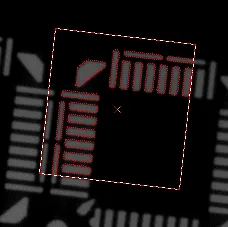
A rotated pattern detected in an image
Compute Per-Feature-Point Score
Use EPatternFinder::SetComputePerFeaturePointScore .NET Python to compute a score for each feature point.
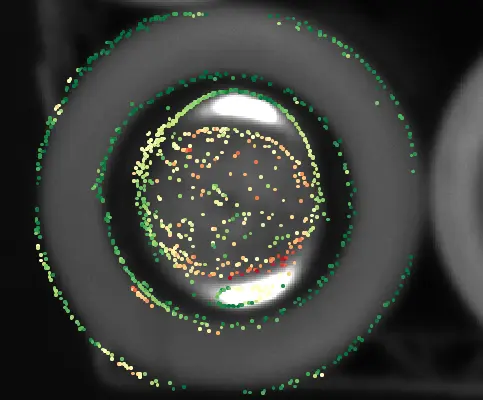
This allows to inspect graphically, for each feature point, if it has a high (green), middle (yellow) or poor (red) score.
Drawing the feature points can help to detect occlusions, small scale, angle or mechanical differences between pattern and image and differences between subsets of the pattern and the image (that might be worth filtering out with an
ERegion).Note that the “bad” feature points are not necessarily those with a small score if the found position isn’t exactly right.
The feature points scores are drawn with
EFoundPattern::Draw().NET Python ifEPatternFinder::SetComputePerFeaturePointScore().NET Python andEFoundPattern::SetDrawFeaturePoints().NET Python are set to true.
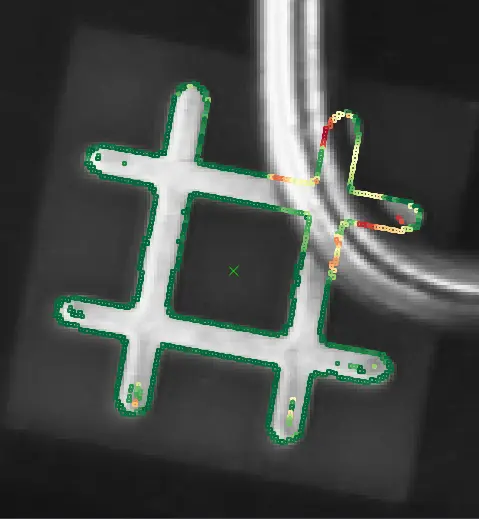
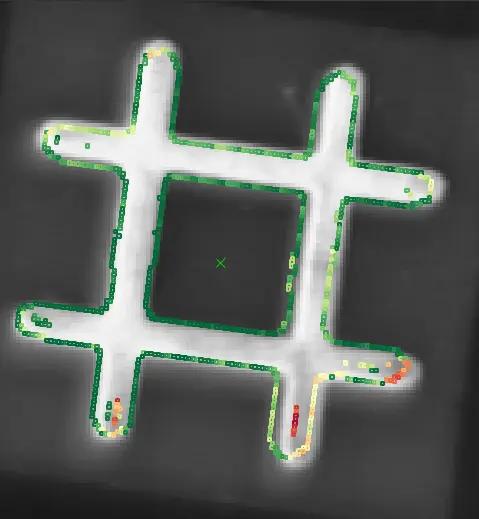
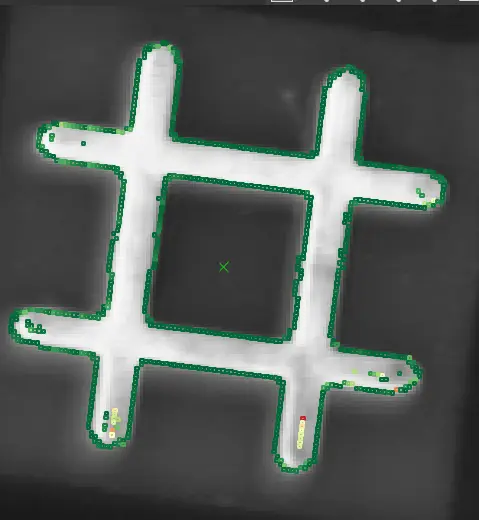
Per-Feature-Point Scores with occlusion (left), a scale tolerance too small (middle) and a good scale tolerance (right)
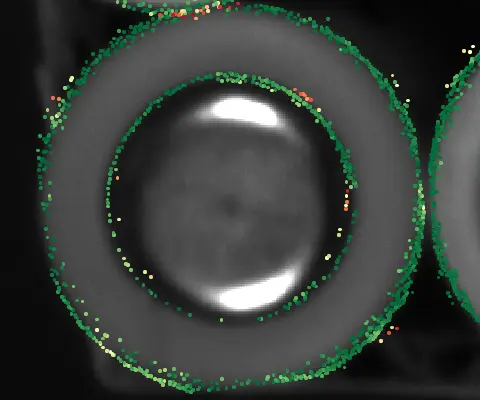
Per-Feature-Point Scores when learning without ERegion (left) and with a good ERegion (right). We see that the feature points in the middle of the battery are not interesting.
Timeout
EPatternFinder::Find .NET Python possesses a timeout:
Use
EPatternFinder::SetFindTimeOut.NET Python to add a time limit to the methodEPatternFinder::Find.NET Python.If the timeout is reached, an exception is thrown and the processing stops.
Note
This timeout mechanism is used to prevent the application from freezing while tuning parameters. This is especially useful in eVision Studio. Note that this does not correspond to the behavior of code reader timeouts, which aim to prevent long processing times in production settings.
Advanced
Maximum Overlap
EasyFind can filter out instances that completely or partially overlap with each other.
Use the parameter EPatternFinder::SetMaxOverlap .NET Python to define the allowed overlap.
The maximum overlap is defined as the area of both instances intersection divided by the area of the smallest instance.
Set the parameter between
0.0(no overlap allowed) and1.0(complete overlap allowed).The default value is
1.0(complete overlap allowed).The instance with biggest score is kept and the one with smallest score discarded.
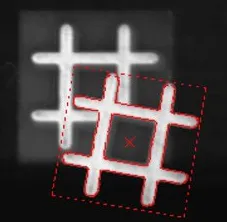
2 instances overlapping one another
Find Partial Patterns
Use the parameter EPatternFinder::SetFindExtension .NET Python to extend the search area (in pixels) and locate instances of thin structures and consistent edges that are partially out of the search field.
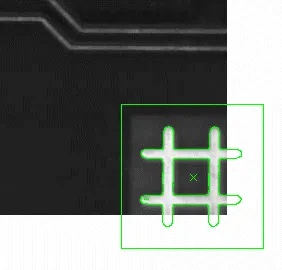
A pattern detected partially outside an image
Local Search Mode
Note
In the multistage approach:
At the coarsest stage, EasyFind finds the pattern occurrence candidates.
At each of the following stages, their position and score are refined until the last and finest one. This refining is achieved by searching for better candidates in the neighborhood of each of the ones found in the previous stage.
Use the parameter EPatternFinder::SetLocalSearchMode .NET Python to set the extent of the neighborhood in which the better candidates are searched.
ELocalSearchMode_Basic.NET Python: the default local search neighborhood
Search scope: Angle = Scale = X = Y = 3
ELocalSearchMode_ExtendedTranslation.NET Python: the local search neighborhood is extended along the translation degrees of freedom.
Search scope: Angle = Scale = 3; X = Y = 5
ELocalSearchMode_ExtendedAll.NET Python: the local search neighborhood is extended along all the degrees of freedom.
Search scope: Angle = Scale = X = Y = 5
ELocalSearchMode_ExtendedMore.NET Python: same asELocalSearchMode_ExtendedAll.NET Python but with a larger extension.
Search scope: Angle = Scale = 7; X = Y = 9
ELocalSearchMode_Custom.NET Python: manually define the search scope:Use
EPatternFinder::SetAngleSearchExtent.NET Python to set theAngleandEPatternFinder::SetScaleSearchExtent.NET Python to set theScaleUse
EPatternFinder::SetXSearchExtent.NET Python andEPatternFinder::SetYSearchExtent.NET Python to set the translation alongXandY
Maximum Initial Candidates
Note
During the search for matching patterns, EasyFind considers a set of candidates and progressively refines it:
A large number of initial candidates can enable finding difficult or partial matches but at the cost of increasing the processing time.
A small number of initial candidates can speed up the find process.
Use the parameter EPatternFinder::SetMaxInitialCandidates .NET Python to set the maximum number of initial candidates that EasyFind considers.
This number must be greater than or equal to the number of instances to be found.
By default, the value is chosen internally.