Execution Settings and Hardware Support (CPU/GPU)
Execution Settings
Training or running a Deep Learning tool is done through an engine that supports one or more devices. For inference, an engine and device can support one or more inference precision.
Engine name |
Supported devices |
Supported platforms |
Training |
Inference |
Inference precision |
|---|---|---|---|---|---|
default |
CPU NVIDIA GPU[1] |
All |
Yes |
Yes |
|
OpenVINO[2] |
CPU Intel GPU NPU |
All |
No |
Yes |
|
TensorRT[3] |
NVIDIA GPU |
All |
No |
Yes |
|
The main engine is named
default:It is always available (it does not require the installation of any additional package) and always supports the CPU of the computer on which it is running.
It always supports both inference and training.
It supports NVIDIA GPU when the package
deep-learning-redistis installed and the NVIDIA drivers are correctly installed and configured.
The other engines:
Use them to increase the inference speed.
The other engines and the support for a GPU are provided by the package named
deep-learning-redist.
The inference precision is about the underlying data type used to perform the computation
FLOAT32means single-precision floating point values as defined in the IEEE 754 standard. Each number occupies 32 bits. This is the default value and the one used for training.FLOAT16means half-precision floating point values as defined in the IEEE 754 standard. Each number occupies 16 bits. It can increase the inference speed at the cost of a small difference in results compared to usingFLOAT32.
Note
The NVIDIA GPU devices, OpenVINO and TensorRT engines requires the deep-learning-redist package.
Deep Learning Studio
In Deep Learning Studio, there are two sets of Execution settings:
For training, select one or more
Training device. The default engine will be used for training. See Using Multiple GPUs for more information about multi GPU training.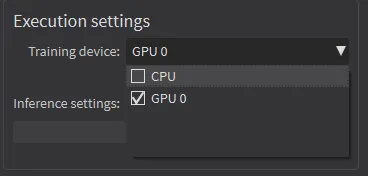
Training settings.
For inference, select the
Engine,DeviceandPrecisionthat you want to use.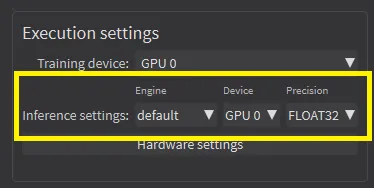
Inference execution settings.
API
Running (inference) or training a Deep Learning tool is done through an engine. The engines are specified through their names.
To set an engine for a tool, use
EDeepLearningTool::SetEngine.NET PythonTo list the available engines, use
EDeepLearningTool::GetAvailableEngines.NET Python
An engine can support different devices:
To list the detected devices for the current engine, use
EDeepLearningTool::GetAvailableDevices.NET PythonTo list the detected devices for another engine, use
EDeepLearningTool::GetAvailableDevicesForEngine.NET Python. Note that this actually loads the engine in memory.The devices are represented by the class
EDeepLearningDevice.NET Python or directly through their name (EDeepLearningDevice::GetName.NET Python) that are guaranteed to be unique for a given engine.
To set a device, use
EDeepLearningTool::SetActiveDevices.NET Python orEDeepLearningTool::SetActiveDeviceByName.NET Python. You can pass multiple devices for multi-GPU training for example.To know if a device supports inference and/or training, use
EDeepLearningDevice::HasInferenceCapability.NET Python andEDeepLearningDevice::HasTrainingCapability.NET Python. Check the matrix below for each engine and device type support.
A device or an engine can support various inference precisions (
FLOAT32orFLOAT16).By default, the precision is
FLOAT32.Use
EDeepLearningTool::SetInferencePrecision.NET Python to set or retrieve the current precision.A lower precision (for example
FLOAT16instead ofFLOAT32) can improve the speed.
Engine Initialization
The initialization of some engines can take quite a long time (for example the TensorRT engine can take up to a few minutes to initialize).
To avoid having to perform this initialization each time you load the Deep Learning tool when your execution device, inference precision and batch size do not change, use the engine setup data.
In the API:
To save the “engine setup data” along with your Deep Learning tool, save your tool after calling
EDeepLearningTool::InitializeInference.NET Python or after making an inference with it.Check whether the tool has engine setup data with
EDeepLearningTool::HasEngineSetupData.NET Python.Check the execution settings for which the engine setup data are for with:
For the device:
EDeepLearningTool::GetEngineSetupDataDevice.NET PythonFor the inference precision:
EDeepLearningTool::GetEngineSetupDataInferencePrecision.NET PythonFor the batch size:
EDeepLearningTool::GetEngineSetupDataBatchSize.NET Python
Warning
For some NVIDIA GPUs or Jetson Orin boards, using a NVIDIA GPU can trigger a long initialization (over a minute), independently of the engine initialization presented above.
To avoid this initialization each time you use a NVIDIA GPU, we recommend to increase the CUDA cache max size to 1024 MB:
On Linux, set the environment variable
CUDA_CACHE_MAXSIZEto1073741824before launching or your program.In a terminal, this means executing:
$ CUDA_CACHE_MAXSIZE=1073741824 /path/to/your/program
On Windows, launch the
Advanced System settings, go to theEnvironmentvariables dialog and add or modify theCUDA_CACHE_MAXSIZEvariable with the value1073741824.
Multicore Processing
The deep learning tools support multicore processing with the engines default and EasyDeepLeanringEngine_OpenVINO (see Multicore Processing):
In the API, use the multicore processing helper function from (that is
Easy::SetMaxNumberOfProcessingThreads.NET Python with a value greater than 1).In Deep Learning Studio, click on the
Configurebutton below theExecution profilecontrol and selectCPU Settingsin the menu.
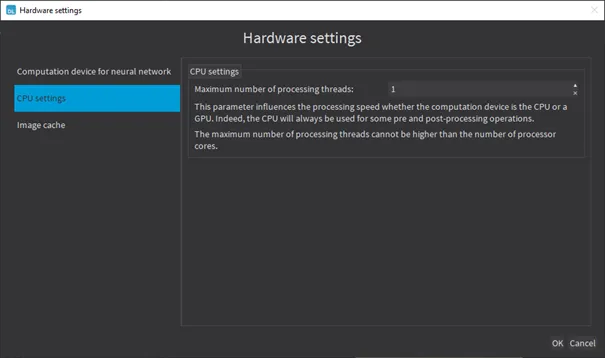
Multicore configuration.
Additional Consideration for NVIDIA CUDA® GPU
Note
Using a recent NVIDIA GPU greatly accelerates the processing speeds.
To use an NVIDIA GPU with the tools, install the
deep-learning-redistpackage for your operating system.In this version of eVision, the GPU acceleration is based on:
NVIDIA CUDA® Toolkit version v12.9.
NVIDIA CUDA® Deep Neural Network library (cuDNN) v9.10.2.
NVIDIA TensorRT library v10.12 on x64 platforms and v10.6 on aarch64 platforms.
Note
For Linux ARM (aarch64 Jetson platforms), the following version has been tested:
JetPack 6 (tested on version 6.2 (L4T 36.4.3))
JetPack 7 (tested on version 7.2 (L4T 39.2.1))
For Windows and Linux x64, check that you have or install the up-to-date NVIDIA drivers. GPU from compute capability 7.5 (Turing/RTX2000 series) to 12.1 (Blackwell/RTX5000 series) are supported.
Refer to your GPU documentation to install recent drivers for your operating system.
For Linux ARM (aarch64 Jetson platforms), install the NVIDIA JetPack SDK version 6.2 or higher.
Use the engine
defaultfor training and inference or the engineEasyDeepLearningEngine_TensorRTfor inference only.
Using Multiple GPUs
You can use multiple NVIDIA GPUs with the default engine for the training and the batch classification by specifying multiple NVIDIA GPUs devices with EDeepLearningTool::SetActiveDevices .NET Python:
Using multiple GPUs increases the training and batch classification speed only if these GPUs are Quadro or Tesla models with the TCC driver model.
See https://docs.nvidia.com/gameworks/content/developertools/
desktop/nsight/tesla_compute_cluster.htmUsing multiple GeForce GPUs does not yield the same performance gain.
Note
Be careful to only set multiple GPUs that have similar performances as the performances are limited by the slowest device.
In Deep Learning Studio, to choose the training devices, check all the devices that you want to use for training.
You can configure these execution profiles to match your needs.
Memory
The Deep Learning tools can consume a lot of memory, especially during training.
Use
EDeepLearningTool::Clean.NET Python to clean up any memory allocated by the selected engine.Note
This does not clean all CPU/GPU memory: some memory includes program data that is statically allocated for the whole program and not for a specific model or tool. The next inference after a call to
EDeepLearningTool::Clean.NET Python takes longer since the engine must reinitialize itself and allocate its memory again (unlessEDeepLearningTool::InitializeInference.NET Python was called).For training, use the image cache to reserve a part of your main memory for storing images.
The default size is 1 GB.
The training speed is higher when the image cache is big enough to hold all the images of your dataset.
To specify the cache size in bytes:
In the API, use the
EDeepLearningTool::SetImageCacheSize.NET Python method.In Deep Learning Studio, click on the
Hardware settingsbutton in theExecution settingspanel and selectImage cachein the menu.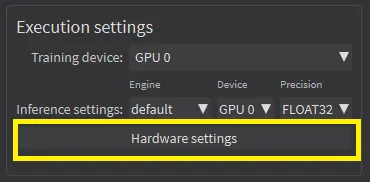
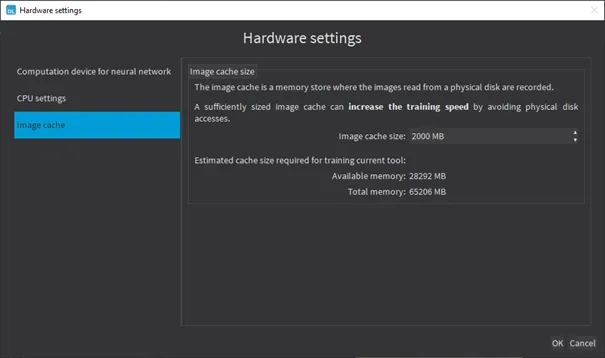
Configuring the image cache size.
When there is enough memory to increase the image cache so that it can hold all the images in the dataset, Deep Learning Studio displays a recommendation next to the training button.
Click on the recommendation to change the image cache size and improve the training speed.
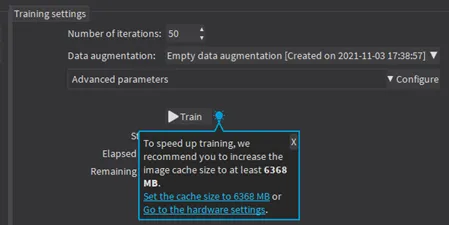
Suggestion to increase the image cache size.
Hint
With a dataset too big to fit in the image cache, we recommend using a SSD drive to hold your images and project files as a SSD drive improves the training speed.