Easy3DObject - Extracting 3D Objects
Easy3DObject extracts objects and their features from a ZMap.
The
E3DObjectExtractor.NET Python class uses a set of criteria to select the objects to extract.The extracted objects are instances of the
E3DObject.NET Python class.
Workflow
Load or build a ZMap (from an image or a point cloud).
Construct an
E3DObjectExtractor.NET Python instance.Set the selection criteria of the
E3DObjectExtractor.NET Python instance.Extract the 3D objects, with or without an
ERegion.NET Python.Get and process the extracted objects list.
Object Features
Units
Both the E3DObjectExtractor .NET Python parameters and the E3DObject .NET Python features are expressed in metric units.
For example: if the resolution of the input
EZMap.NET Python is expressed in mm / pixel, the length parameter is expressed in mm.Use the
EZMap::GetResolution.NET Python andEZMap::SetResolution.NET Python accessors of theEZMap.NET Python to query and change its resolution.
Angles are expressed in the unit defined by Easy::SetAngleUnit .NET Python.
Hint
In this documentation, we use the default setting and all angles are expressed in degrees.
Object Plane and Base Plane
The E3DObjectExtractor .NET Python fits a plane to the pixels of each E3DObject .NET Python output:
Use
E3DObject::GetPlane.NET Python to access this plane.
The E3DObjectExtractor .NET Python also tries to fit a plane to the pixels surrounding an E3DObject .NET Python
This plane is called the base plane.
It is an estimation of the local background around the object.
If there are too many undefined pixels in this area, the base plane is equal to the reference plane of the input
EZMap.NET Python.
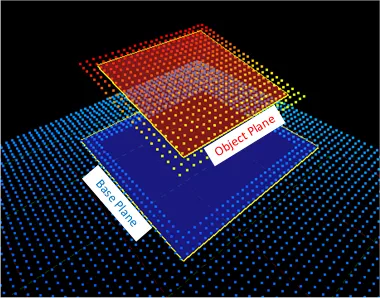
Representation of the base plane and the object plane.
Bounding Box
The bounding box is the minimal enclosing rectangle for all the object positions.
It is oriented in the XY plane of the ZMap space (rotation around the Z axis of the ZMap).
Its rotation is used as the orientation of the object (see
E3DObject::GetOrientation.NET Python).Its X and Y sizes are the object length and width (see
E3DObject::GetLength.NET Python andE3DObject::GetWidth.NET Python).Its Z size is always in the Z axis of the ZMap direction.
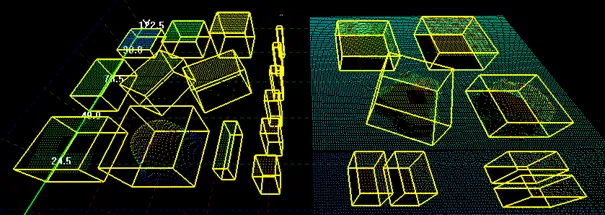
Representation of bounding boxes around 3D objects.
Length and Width
The length of an object is the largest dimension on the XY plane in the ZMap space. It is the same as the size of the major axis of the bounding box.
The width of an object is the smallest dimension on the XY plane in the ZMap space. It is the same as the size of the minor axis of the bounding box.
Use the E3DObjectExtractor::SetLengthRange .NET Python and the E3DObjectExtractor::SetWidthRange .NET Python accessors to set the ranges of allowed values for the length and the width.
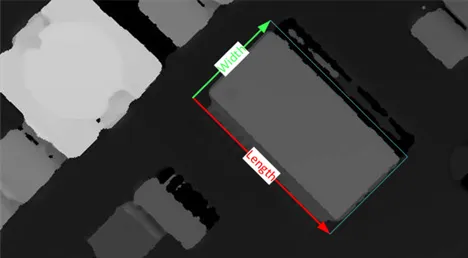 Length and width of 3D objects in a ZMap.
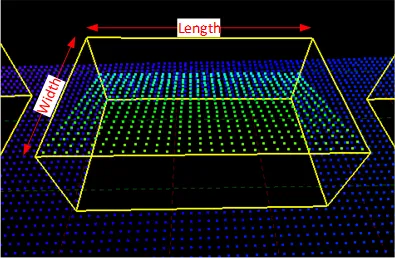 Length and width of 3D objects in a point cloud.
Local and Reference Top Positions and Heights
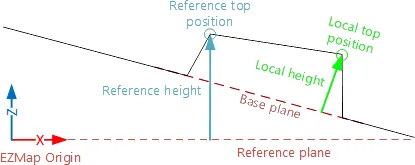
The local top position of an object is the position (3D coordinates) of the point in the E3DObject .NET Python that is the furthest from the base plane.
The local height of an object is the distance between the local top position and the base plane.
The reference top position of an object is the position (3D coordinates) of the point in the E3DObject .NET Python that is the furthest from the reference plane.
The reference height of an object is the distance between the reference top position and the reference plane.
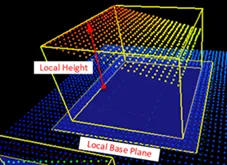
Reference height viewed in a point cloud representation.
If there are too many undefined pixels in the object surroundings:
The base plane is equal to the reference plane of the input
EZMap.NET Python.The local top position is equal to the reference top position.
The local height is equal to the reference height.
Use the E3DObjectExtractor::SetLocalHeightRange .NET Python and the E3DObjectExtractor::SetReferenceHeightRange .NET Python accessors to set the ranges of allowed values for the local and the reference height.
Average Position
The average position is the arithmetic mean of the 3D positions of the object, also known as the barycenter.
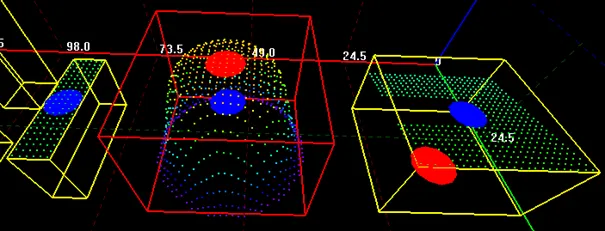
The average position is displayed in blue. The top position is displayed in red. The object on the left shows the average and the top positions at the same place. The object in the center shows the average position inside the object.
Aspect Ratio
The aspect ratio is the width (the smallest dimension on the XY plane) divided by the length (the largest dimension).
It lies between 0 and 1.
The smaller the ratio, the more elongated the object is.
A square has an aspect ratio of 1.
Use the E3DObjectExtractor::SetAspectRatioRange .NET Python accessor to set the range of allowed values for the aspect ratio.
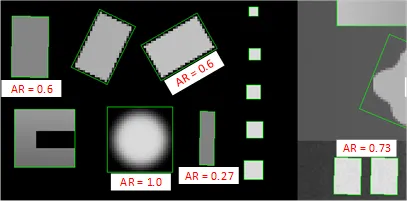
Aapect ratios of different objects in a ZMap representation.
Orientation Angle
The orientation angle is the angle between the X axis of the EZMap .NET Python and the longest axis (the length) of the object.
The angle is measured in the clockwise direction.
The value must lie between \(-90°\) and \(+90°\).
Use the E3DObjectExtractor::SetOrientationRange .NET Python accessor to set the range of allowed values for the orientation angle.
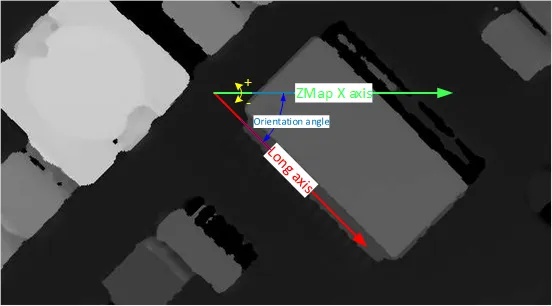
Representation angle viewed in a ZMap representation.
Local and Reference Tilt Angles
The local tilt angle is the angle between the base plane and the object plane.
A value of 0 means that the object top surface is parallel to its base.
The value must lie between \(0°\) and \(+90°\).
The reference tilt angle is the angle between the object plane and ZMap XY plane.
A value of 0 means that the object top surface is parallel to its base.
The value must lie between \(0°\) and \(+90°\).
Use the E3DObjectExtractor::SetLocalTiltRange .NET Python and the E3DObjectExtractor::SetReferenceTiltRange .NET Python accessors to set the range of allowed values for the tilt angles.
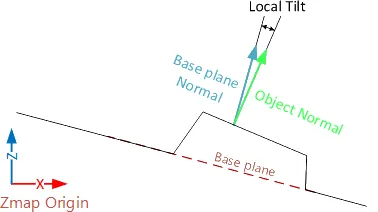 Local tilt.
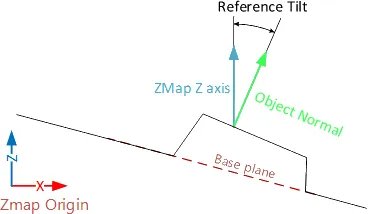 Reference tilt.
Area
The object area is the area of the top surface of the object projected on the reference plane of the EZMap .NET Python.
It is equal to the number of pixels in the object × the x-resolution of the
EZMap.NET Python × the y-resolution of theEZMap.NET Python.
Use the E3DObjectExtractor::SetAreaRange .NET Python accessor to set the range of allowed values for the area.
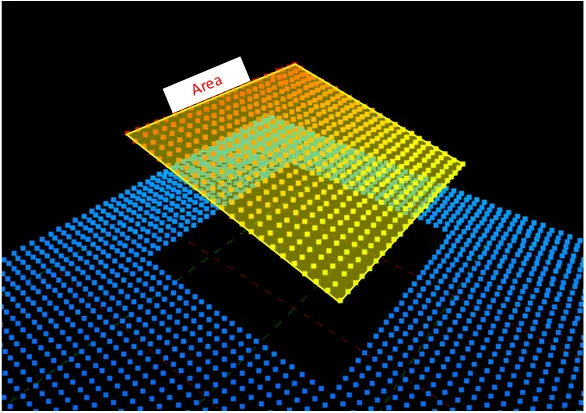
Area of an object in a point cloud representation.
Volume
The object volume is the volume that lies between the top surface and the base plane of the object.
Use the E3DObjectExtractor::SetVolumeRange .NET Python accessor to set the range of allowed values for the volume.
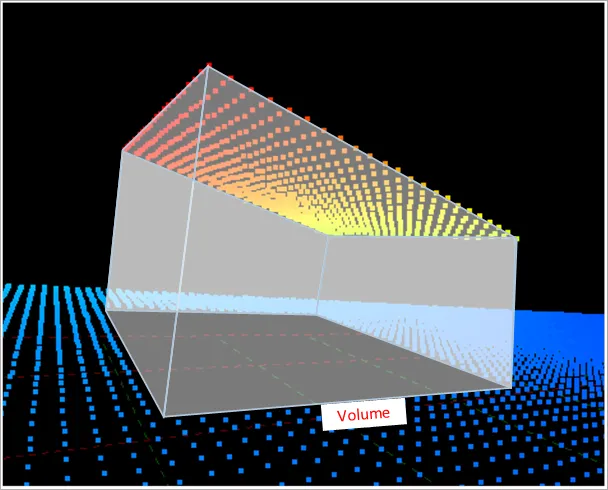
Volume of an object in a point cloud representation.
Sphere
This feature is disabled by default.
When enabled, a sphere is an object E3DSphere .NET Python that represents the sphere that best fits the object (calculated according to the least squares).
Extracting and Using Objects
Extracting the Objects
Use the E3DObjectExtractor::Extract .NET Python method to perform the objects extraction.
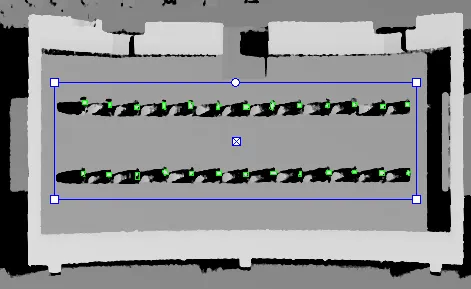
Object extraction (green boxes) in a predefined area (in blue) on a ZMap.
You can limit the extraction to an ERegion .NET Python, for example to ignore parts of the ZMap that are not interesting and/or to speed up the extraction process.
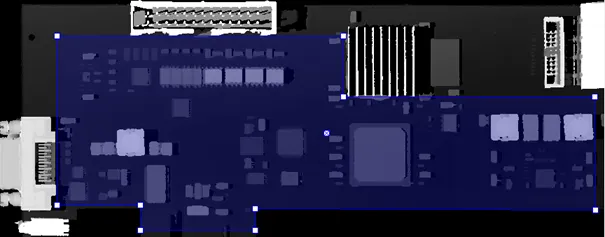
Region to limit object extraction on a ZMap.
The processing speed of the extraction depends directly on:
The number of pixels in the ZMap or in the ERegion.
The number of segmented objects.
The computer features for each segmented object.
Hint
To speed up the extraction process:
Adjust the extraction ranges to reduce the number of objects.
Disable the features you do not need.
Overlapped Objects
By default, the extraction does not produce objects that overlap on the ZMap. You must enable the E3DObjectExtractor::SetOverlappedObject .NET Python option to extract “stacked” objects.
The area ratio and the height difference parameters control how overlapped objects are extracted:
The area ratio is configured by
E3DObjectExtractor::SetOverlappedAreaRatio.NET Python. The area of the bottom object divided by the area of the top object must be larger or equal than that ratio.
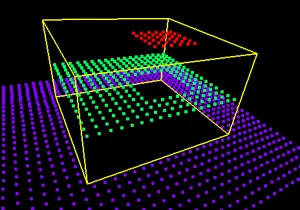
Overlapped extraction is disabled.
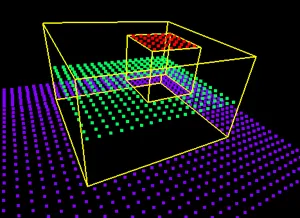
Overlapped extraction is enabled, with OverlappedAreaRatio = 4.
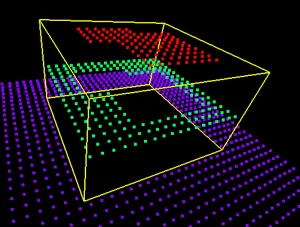
Overlapped extraction is enabled, with OverlappedAreaRatio = 4.
The top object is too large to be extracted, the ratio of the areas is lower than 4.
The height difference is configured by
E3DObjectExtractor::SetOverlappedHeightDifference.NET Python. This represent the minimum height difference between the top and the bottom object
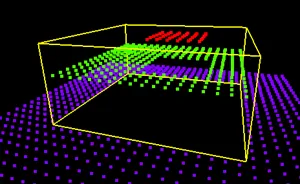
Overlapped extraction is enabled, with OverlappedHeightDifference = 2. The height of the top object (red) from the bottom object (green) is too small, the object is not extracted.
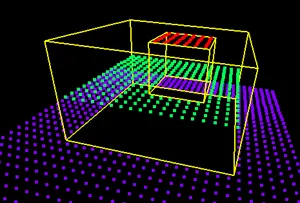
Overlapped extraction is enabled, with OverlappedHeightDifference = 2. The height of the top object from the bottom object is larger than 2, the object is extracted.
Controlling the Object Detection
Two optional parameters affect the detection of the object:
E3DObjectExtractor::SetExtractionSensitivity.NET Python controls the sensitivity of the extraction.A higher value increases the ability to detect objects that are mixed with their surrounding, because their grey values are close to the background or because the transition (the gradient) between the object and the background is smooth.
This parameter value ranges from 0 to 1 (the default value is 0.6).

Extraction sensitivity: 0.5 (left) and 0.8 (right)
E3DObjectExtractor::SetContourReinforce.NET Python affects the extraction of the objects.As the extraction can fail when objects are close or touch each other, this parameter enables a filter to enhance the frontiers between objects and enable the extraction of such objects.
The filter can affect the measurements.
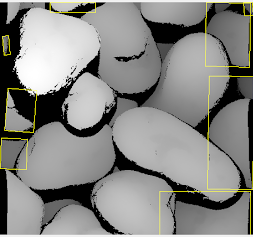 Contour reinforcement OFF.
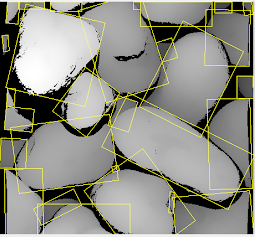 Contour reinforcement ON.
Using the Objects
The E3DObjectExtractor::Extract .NET Python method populates a list of E3DObject .NET Python fulfilling your set criteria.
Each
E3DObject.NET Python is a collection of descriptive features of the associated 3D points in theEZMap.NET Python, such as its oriented bounding box, its local height and its volume.Call the associated
E3DObject.NET Python method to access a feature.The
E3DObject.NET Python list is sorted from the smallest area to the largest area.Use
E3DObjectExtractor::GetObjectsMask.NET Python to get the mask of all the extractedE3DObject.NET Python.
Visualizing the Objects
To visualize some of these features in 2D or 3D:
Use the
E3DObject::Draw.NET Python method.Or submit a list of
E3DObject.NET Python to anE3DViewer.NET Python.
Hint
In an E3DViewer .NET Python, use the ERenderStyle .NET Python structure to choose your rendering style.
See below some examples to draw features from a list of E3DObjects:
Drawing 2D features:
#include <eVision/Easy3D/Easy3DObject/E3DObjectExtractor.h>
#include <eVision/Easy/EGenericDrawAdapter.h>
using namespace eVision;
using namespace eVision::Easy3D;
E3DObjectExtractor extractor;
// Get the list of E3DObjects
std::vector<E3DObject> objects = extractor.GetObjects();

// Get the dimensions of the 2D feature
ERegion region = extractor.GetObjectsMask();

// Get an image on which to draw the 3D objects
EImageC24A image(region.GetBoundingBoxWidth(), region.GetBoundingBoxHeight());
EGenericDrawAdapter drawContext(&image);

// Draw the ERegion of each object
int nObjects = (int)objects.size();
for (int i = 0; i < nObjects; i++)
  objects[i].Draw(&drawContext, E3DObjectFeature_ERegion, ERGBColor(0, 255, 0));
using eVision;
using eVision.Easy3D;
E3DObjectExtractor extractor = new E3DObjectExtractor();

// Get the list of E3DObjects
E3DObject[] objects = extractor.Objects;

// Get the dimensions of the 2D feature
ERegion region = extractor.ObjectsMask;

// Get an image on which to draw the 3D objects
EImageC24A image = new EImageC24A(region.BoundingBoxWidth, region.BoundingBoxHeight);
EGenericDrawAdapter drawContext = new EGenericDrawAdapter(image);

// Draw the ERegion of each object
int nObjects = objects.Length;
for (int i = 0; i < nObjects; i++)
  objects[i].Draw(drawContext, E3DObjectFeature.ERegion, new ERGBColor(0, 255, 0));
import eVision
from eVision import Easy3D
extractor = Easy3D.E3DObjectExtractor()

# Get the list of E3DObjects
objects = extractor.Objects

# Get the dimensions of the 2D feature
region = extractor.ObjectsMask

# The drawing surface
display_img = eVision.EImageC24A(width=region.BoundingBoxWidth, height=region.BoundingBoxHeight)
draw_adapter = eVision.EGenericDrawAdapter(display_img)

# Draw the ERegion of each object
for object_i in objects:
    object_i.Draw(draw_adapter, Easy3D.E3DObjectFeature.ERegion, eVision.ERGBColor(0, 255, 0))
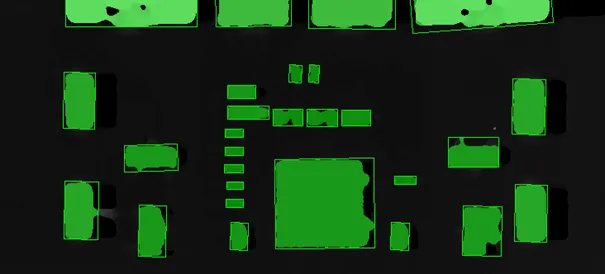
Example of objects extracted using the snippets above.
Drawing 3D features:
#include <eVision/Easy3D/Easy3DObject/E3DObjectExtractor.h>
#include <eVision/Easy3D/E3DViewer.h>
using namespace eVision;
using namespace eVision::Easy3D;
E3DObjectExtractor extractor;
// Get the list of E3DObjects
std::vector<E3DObject> objects = extractor.GetObjects();

// Register the list of E3DObjects to the 3D viewer
E3DViewer viewer3D(0, 0, 640, 480);
viewer3D.Register3DObjects(objects);


// Define and use a render style for the ReferenceTopPosition feature
ERenderStyle renderStyle;
renderStyle.pointRGB = EC24A(100, 0, 0);
viewer3D.SetFeatureStyleForAll3DObjects(renderStyle, E3DObjectFeature_ReferenceTopPosition);

// Set a different rendering color for the first object
ERenderStyle selectedRenderStyle;
selectedRenderStyle.pointRGB = EC24A(255, 255, 0);
viewer3D.SetFeatureStyleFor3DObject(0, selectedRenderStyle, E3DObjectFeature_ReferenceTopPosition);

// Enable the display of the TopZPosition feature
viewer3D.ShowFeatureForAll3DObjects(E3DObjectFeature_ReferenceTopPosition);
using eVision;
using eVision.Easy3D;
E3DObjectExtractor extractor = new E3DObjectExtractor();

// Get the list of E3DObjects
E3DObject[] objects = extractor.Objects;

// Register the list of E3DObject to the 3D viewer
E3DViewer viewer3D = new E3DViewer(0, 0, 100, 100);
viewer3D.Register3DObjects(objects);


// Define and use a render style for the ReferenceTopPosition feature
ERenderStyle renderStyle = new ERenderStyle();
renderStyle.pointRGB = new EC24A(100, 0, 0);
viewer3D.SetFeatureStyleForAll3DObjects(renderStyle, E3DObjectFeature.ReferenceTopPosition);

// Set a different rendering color for the first object
ERenderStyle selectedRenderStyle = new ERenderStyle();
selectedRenderStyle.pointRGB = new EC24A(255, 255, 0);
viewer3D.SetFeatureStyleFor3DObject(0, selectedRenderStyle, E3DObjectFeature.ReferenceTopPosition);

// Enable the display of the ReferenceTopPosition feature
viewer3D.ShowFeatureForAll3DObjects(E3DObjectFeature.ReferenceTopPosition);
import eVision
from eVision import Easy3D
extractor = Easy3D.E3DObjectExtractor()

# Get the list of E3DObjects
objects = extractor.Objects

# Register the list of E3DObject to the 3D viewer
viewer3D = Easy3D.E3DViewer(0, 0, 100, 100)
viewer3D.Register3DObjects(objects)

# Define and use a render style for the ReferenceTopPosition feature
render_style = Easy3D.ERenderStyle()
render_style.pointRGB = eVision.EC24A(100, 0, 0)
viewer3D.SetFeatureStyleForAll3DObjects(render_style, Easy3D.E3DObjectFeature.ReferenceTopPosition)

# Set a different rendering color for the first object
selected_render_style = Easy3D.ERenderStyle()
selected_render_style.pointRGB = eVision.EC24A(255, 255, 0)
viewer3D.SetFeatureStyleFor3DObject(0, selected_render_style, Easy3D.E3DObjectFeature.ReferenceTopPosition)

# Enable the display of the ReferenceTopPosition feature
viewer3D.ShowFeatureForAll3DObjects(Easy3D.E3DObjectFeature.ReferenceTopPosition)
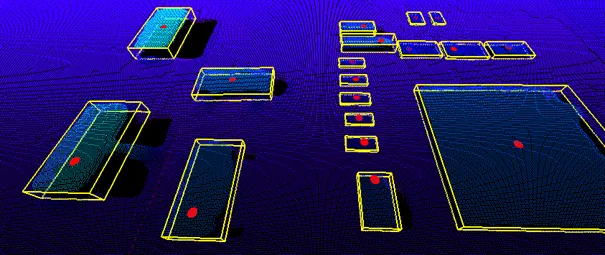
3D features drawn using the snippets above.