EasyGaugeRegion
Support |
|
|---|---|
Required licenses |
EasyGauge, EasyObject |
Recommended images |
Any image from the folder |
Location |
|


Purpose
This sample program demonstrates how to:
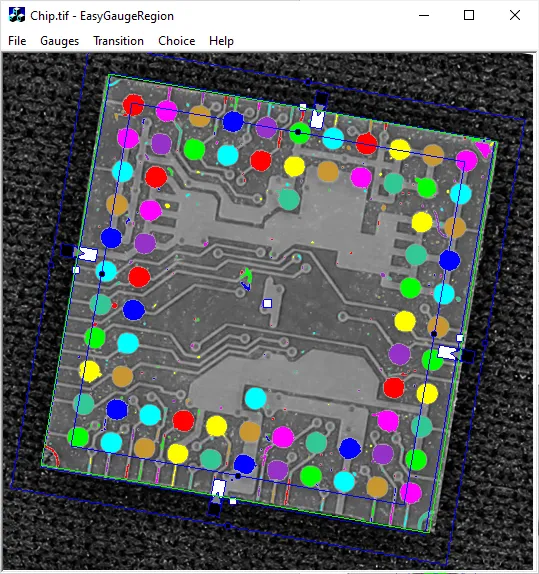
Load an image and apply a gauge from , chosen between a Rectangle Gauge and a Circle Gauge.
Create a region corresponding to the gauge from the result.
Perform a blob encoding operation on it.
The color of each blob is assigned depending on its center position; thus, the colors change when you move the gauge
Code highlights
Perform the measurement with
ECircleGauge.// Measure a circle ECircleGauge m_CircleGauge; m_CircleGauge.Measure(&m_Image);
Build an
ERegionfrom the resulting circle.// Use measured circle to create corresponding region ERegion* m_pRegion; m_pRegion = new ECircleRegion(m_CircleGauge.GetMeasuredCircle());
Perform the blob encoding inside that region.
// Use EasyObject on the region
EImageEncoder m_Encoder;
m_Encoder.Encode(m_Image, *m_pRegion, m_CodedImage);
Draw the encoded object with different colors.
ERGBColor colors[] = {
    ERGBColor(255, 0, 0),
    ERGBColor(0, 255, 0),
    ERGBColor(0, 0, 255),
    ERGBColor(255, 0, 255),
    ERGBColor(255, 255, 0),
    ERGBColor(0, 255, 255),
    ERGBColor(150, 50, 200),
    ERGBColor(50, 200, 150),
    ERGBColor(200, 150, 50)
};

for (int i = 0; i < codedImage.GetObjCount(); i++)
{
  EObject& obj = codedImage.GetObj(i);
  int colorIdx = ((int)(obj.GetBoundingBoxCenterX() + obj.GetBoundingBoxCenterY()) / 10) % 9;
  codedImage.Draw(drawAdapter, colors[colorIdx], obj);
}