Training a Deep Learning Tool
Deep Learning Studio
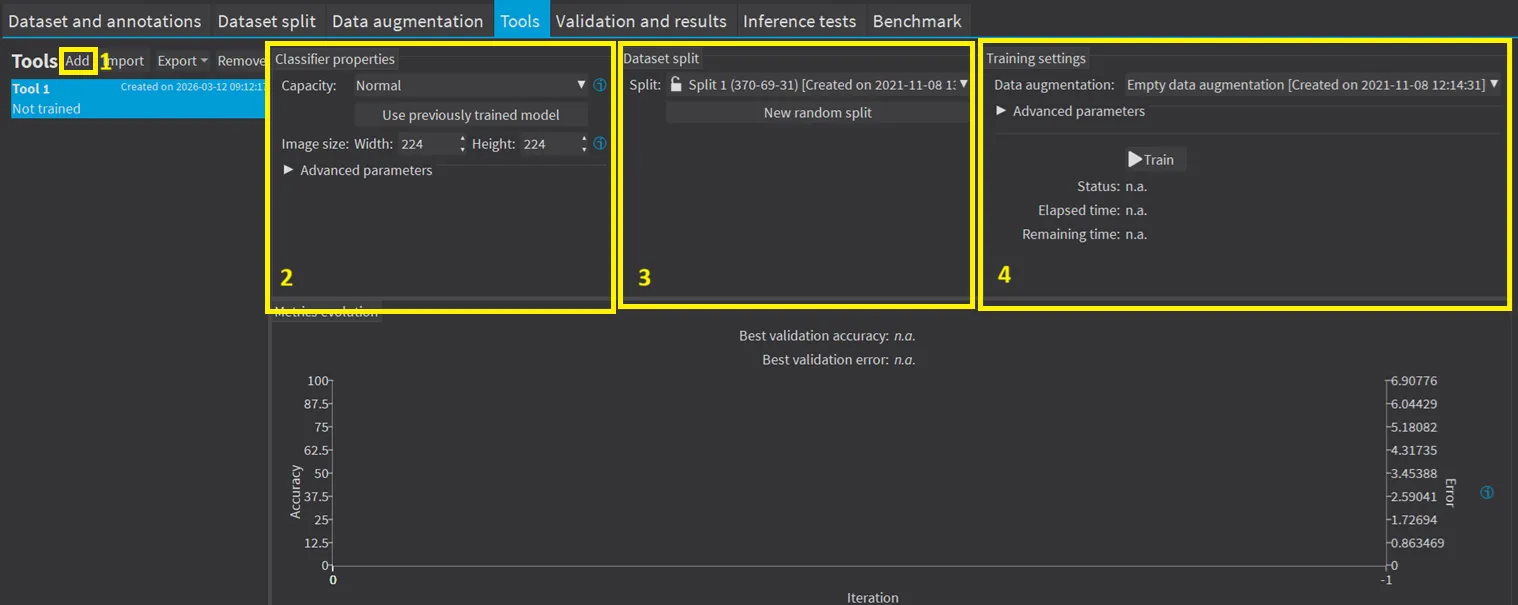
Create a new tool by clicking on
AddConfigure the tool settings.
Select the dataset split to use for this tool.
Configure the training settings and click on
Train.
API
In the API, to train a deep learning tool, call the corresponding method:
Training Settings
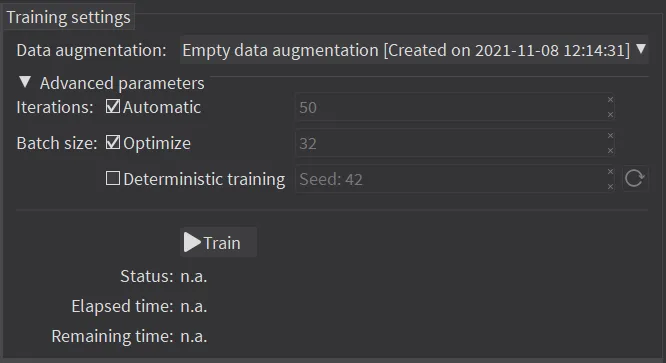
The number of
Iterations. An Iteration corresponds to going through all the images in the training set once.The training process requires a large number of iterations to obtain good results.
The larger the number of iterations, the longer the training is and the better the results you obtain.
By default, the number of iteration is determined automatically during the training to stop when no progress has been made for a while.
This is called early stopping.
To disable this behavior, use the method
Trainof any tool with the iteration parameter.
An iteration is also called an epoch.
Note
We recommend to use more iterations than the default value in these cases:
For EasyClassify without pretraining, EasyLocate and EasySegment.
For smaller dataset because the training is harder (for example, 100 iterations for a dataset with 100 images, 200 iterations for a dataset with 50 images, 400 iterations for a dataset with 25 images…).
The
Batch sizecorresponds to the number of images or image patches that are processed together.The training is influenced by the batch size.
A large batch size increases the processing speed of a single iteration on a GPU but requires more memory.
The training process is not able to learn a good model with too small batch sizes.
By default, the batch size is determined automatically during the training to optimize the training speed with respect to the available memory.
Use
EDeepLearningTool::SetOptimizeBatchSize.NET Python to disable this behavior.Use
EDeepLearningTool::SetBatchSize.NET Python to change the size of your batch.
EDeepLearningTool::GetBatchSizeForMaximumInferenceSpeed.NET Python gets the batch size that maximizes the batch classification speed on the selected GPU (see Execution Settings and Hardware Support (CPU/GPU)) according to the available memory.It is common to choose powers of 2 as the batch size for performance reasons.
The
Data augmentationsettings.Whether to use
Deterministic trainingor not.The deterministic training allows to reproduce the exact same results when all the settings are the same (tool settings, dataset split and training settings).
The deterministic training fixes random seeds used in the training algorithm and uses deterministic algorithms.
The deterministic training is usually slower than a non-deterministic training.
In Deep Learning Studio, the option to use deterministic training and the random seed are available in the advanced parameters.
In the API, use
EDeepLearningTool::SetEnableDeterministicTraining.NET Python andEDeepLearningTool::SetDeterministicTrainingRandomSeed.NET Python.
Continue the Training
You can continue to train a tool that is already trained.
In Deep Learning Studio, the dataset split associated with a trained tool is locked.
You can only continue training a tool with the same dataset split.
You can still add new training or validation images to the split by moving test images to the training set or the validation set of that split.
Note
If you used the early stopping (the default behavior) for the previous training, uncheck the Automatic button and provide the number of iterations to continue the training.
Asynchronous Training
The training process is asynchronous and performed in the background.
In Deep Learning Studio:
The training processes are queued.
They are automatically executed one after the other.
You can manually reorder the training in the processing queue.
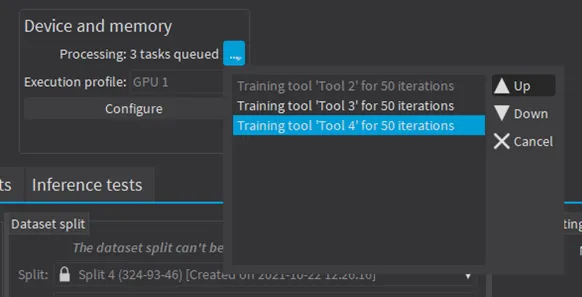
Processing queue. In the API:
The
Trainmethod corresponding to your tool launches a new thread that does the training in the background.WaitForTrainingCompletion.NET Python suspends the program until the whole training is completed.WaitForIterationCompletion.NET Python suspends the program until the current iteration is completed.During the training,
GetCurrentTrainingProgression.NET Python shows the progression of the training.