Using EasyBarCode
Symbologies
A symbology defines how a bar code is encoded using its bars and spaces.
In EasyBarCode, the following symbologies are enabled by default:
Code 128 |
Ean 8 |
Ean 13 |
GS1 128 |
Code 39 |
Code 39 Extended |
Code 39 Reduced |
Code 93 |
Code 93 Extended |
GS1 DataBar Omnidirectional |
GS1 DataBar Limited |
GS1 DataBar Expanded |
GS1 DataBar Omnidirectional Stacked |
GS1 DataBar Expanded Stacked |
The following symbologies are also supported:
ITF-14 |
Pharmacode (one track) |
PDF417 |
Codabar |
MSI |
UPC A |
UPC E |
ADS Anker |
BC412 |
Code 11 |
Code 13 |
Code 25 Datalogic |
Code 25 Matrix |
Code 25 Iata |
Code 25 Industry |
Code 25 Compressed |
Code 25 Inverted |
Code 25 Interleaved |
Code 32 |
Code BCD Matrix |
Code CIP |
Code STK |
IBM Delta Distance A |
Plessey |
Telepen |
Binary Code |
RSS14 |
RSS14 Limited |
RSS14 Expanded |
See also
A description of the properties and look of each symbology can be found here
To setup the symbologies to consider during the reading operation, use the following methods of the EBarCodeReader .NET Python class:
Use
EBarCodeReader::GetEnabledSymbologies.NET Python to check the enabled symbologies.Note
EBarCodeReader::EnableSafeSymbologies.NET Python does not enable theEBarCodeSymbologies_PDF417.NET Python, theEBarCodeSymbologies_CodeStk.NET Python, theEBarCodeSymbologies_BinaryCode.NET Python and theEBarCodeSymbologies_PharmacodeOneTrack.NET Python symbologies:Enabling the
PDF417symbology modifies the detection process, which may be detrimental to detect other symbologies.The three other symbologies are very permissive and can generate a large amount of false positives.
You must explicitly use
EBarCodeReader::EnableSymbology.NET Python to enable thePDF417,CodeStk,BinaryCodeandPharmacodeOneTracksymbologies.Because some symbologies are similar, a given bar code can be detected as corresponding to more than one. Use
EBarCode::GetSymbologies.NET Python to retrieve all compatible symbologies, in order of decreasing confidence.Use
EBarCode::GetDecodedString.NET Python with its optional symbology parameter to retrieve the decoded string as decoded given the symbology passed as parameter. If you omit this parameter, the decoded string will be decoded using the most likely symbology.For the
GS1-128andGS1 DataBar Omnidirectional,Limited,Expanded,Omnidirectional StackedandExpanded Stackedsymbologies:Use
EBarCode::GetDecodedString.NET Python to get the machine-readable code (for example:]C11118011215190101).Use
EGs1Translator::GetHumanReadableCode.NET Python to get the human-readable version (for example:(11)180112(15)190101).
Some characters can be encoded using ECI in the
EBarCodeSymbologies_PDF417.NET Python symbology. In such cases, the returnedEBarCode.NET Python contains the encoded data converted toutf-8.
Checksum and Validation
The checksum of a bar code enables the reader to validate the bar code contents, most symbologies possess one, see the list.
By default, EasyBarCode checks the checksum validity when required by the symbology specifications.
The symbologies
Code39(and variants),Codabar,Code 11andCode 25(and variants) define but do not enforce a checksum. We call their checksum optional. By opposition, the checksums that are always present are called mandatory. When the checksum is optional, there is no way to know if the barcode contains one from the image alone and no checksum validation is performed by default.For the
PharmacodeOneTracksymbology, by default, no checksum is computed but additional validations are performed on the bar code vertical uniformity to rule out false positives.
To reject bar codes if they fail mandatory or optional checksum validation or Pharmacode validation, respectively use
EBarCodeReader::SetValidateMandatoryChecksum.NET Python,EBarCodeReader::SetValidateOptionalChecksum.NET Python andEBarCodeReader::SetValidatePharmacode.NET Python.Set the property to
true, to not return bar codes failing the corresponding validation.By default,
EBarCodeReader::GetValidateMandatoryChecksum.NET Python andEBarCodeReader::GetValidatePharmacode.NET Python are set totrueandEBarCodeReader::GetValidateOptionalChecksum.NET Python is set tofalse.
Call
EBarCode::GetChecksumOK.NET Python to check the checksum status of the returnedEBarCode.NET Python object.By default, the checksum characters are included into the string returned by
EBarCode::GetDecodedString.NET Python.Set the optional parameter
includeChecksumtofalseto remove these checksum characters from the returned string,
Note
As mentioned above, some symbologies, such as
Code39have optional checksum characters. In those cases, determining their presence automatically is usually not possible. Thus, settingincludeChecksumtofalsemight crop parts of the decoded string.
See also
Refer to the following code snippet as an example: Reading a Bar Code Following a Given Symbology
Grading Bar Codes
To compute the print quality indicators as defined by the ISO 15416 standard:
Set the
EBarCodeReader::SetComputeGrading.NET Python totrue.The print quality of the bar codes is computed during the
EBarCodeReader::Read.NET Python operation.Retrieve the grades with the accessor
EBarCode::GetGradingParameters.NET Python of the classEBarCode.NET Python.This will retrieve an
EBarCodeGradingParameters.NET Python object.Retrieve the numeric grades (0 to 40) directly from the object.
Use the method
EBarCodeGradingParameters::ConvertToAlphabeticGrade.NET Python to convert the numeric grades to alphabetic grades (F to A).
Note
At the moment, grading is only supported for the Ean 13, Code 128 and GS1 128 symbologies. Don’t hesitate to contact the support if you need grading of other symbologies.
See also
Refer to the following code snippet as an example: Grading a Bar Code.
For more information on code grading, see Code Grading.
Advanced Features
Contents of the EBarCode Object
When a bar code is read from an image, the EBarCode .NET Python object contains the following information:
The
decoded string.NET Python of the bar code.One or several
symbologies.NET Python compatible with the bar code.Whether the
pattern.NET Python,advanced decoding.NET Python orprinting error.NET Python error correction was used.The
grading parameters.NET Python of the bar code.Draw methods for the
decoded string.NET Python andposition.NET Python of the bar code.
Reading using an ERegion
Use
EBarCodeReader::Read.NET Python, using an overload taking anERegion.NET Python to restrict the domain on which theEBarCodeReader.NET Python detects and reads the bar codes .
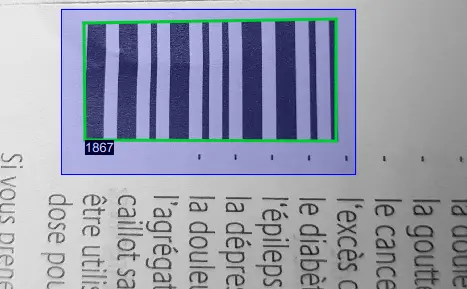
Reading a bar code (green) with an ERegion (blue).
Reading using a Grid
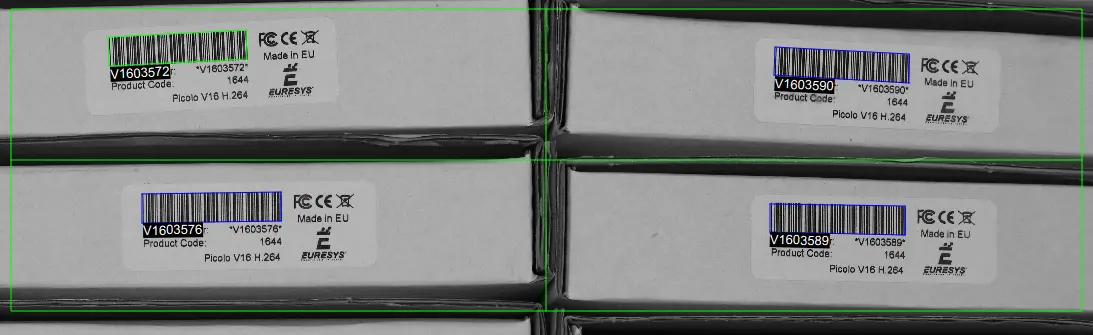
If the codes in the images are arranged in a regular grid-like fashion:
Use the dedicated
EBarCodeReader::Read.NET Python overloads that take anEGrid.NET Python object to improve the reliability and the speed of the reading.Use the methods
EGrid::SetEnableCell.NET Python,EGrid::SetEnableRow.NET Python,EGrid::SetEnableColumn.NET Python orEGrid::SetEnableAll.NET Python to disable the processing of cells that you know do not contain any code.Use the method
EBarCodeGrid::GetResults.NET Python of the returnedEGrid.NET Python object to retrieve the codes read in each cell of the defined grid.
See also
For an example, see Reading a Grid of Bar Codes
Using a Timeout
If you have a defined time constraint:
Use
EBarCodeReader::SetTimeOut.NET Python to define a timeout for theEBarCodeReader.NET Python object. This timeout limits the amount of time available to theEBarCodeReader::Read.NET Python method and forces it to return early if needed.
Specifying the Orientation of your Codes
For most symbologies, a pattern identifies whether the codes must be read from left to right or right to left.
This is however not the case for the Code STK, Binary Code and Pharmacode symbologies.
For these symbologies, you must know whether to decode the bar code from left to right or from right to left. Use the method EBarCodeReader::SetReadingOrientation .NET Python to specify it.
Learning from provided Images to Improve the Detection Performances
The learning automatically tunes the scales at which you try to find a bar code to best fit the set of images you gave it. The
scalesare modified to read the maximum number of codes depending on the parameters of the learn method.EBarCodeReader::Learn.NET Python has two Boolean parameters:keepDefaultScalesindicates that thescalesused by default should not be disabled by the learning (trueby default).addAllScalesindicates that all thescalesthat allow to detect one code should be enabled (trueby default).
Tips:
If you perform a learning on a few problematic images, set both parameters to
true.If you perform a learning on a representative set of problematic images, set
keepDefaultScalestotrueandaddAllScalestofalse.If you perform a learning on a representative set of all the images you want to read, set both parameters to
false.The only benefit to set either of these parameters to
falseis the reading speed. In most cases, the impact should not be important, so you can leave them totrue. When less thanmaxNumCodesare read in an image, the reader tries to find a code in all thescalesenabled, which takes time. In that case, setting these parameters tofalsemay have an important impact on the speed.
See also
For an example, see Learning a Bar Code
Correcting Errors
EasyBarCode implements three methods to read more difficult codes. In rare cases, these can cause false positives and so you can disable them.
EBarCodeReader::SetEnablePatternCorrection.NET Python: Most bar codes symbologies (Code128,Ean13,…) group consecutive strips into patterns. The algorithm then decodes the bar code one pattern at a time, and, when the current pattern does not match one of the patterns of the symbology, it tries to match the closest pattern (under some constraints).EBarCodeReader::SetEnableAdvancedDecoding.NET Python: Specifically forEan13,Code128andGS1-128, an advanced algorithm determines the most likely pattern sequence that enforces the checksum.EBarCodeReader::SetEnablePrintingErrorCorrection.NET Python: Some printing defects can occur in bar codes (like a bar being one module wide instead of two). Some error correction is enabled for these cases specifically and, as this method is more likely to generate false positives than the other ones, it is disabled by default.
Once a bar code is returned, use the methods
EBarCode::GetPatternCorrectionUsed.NET Python,EBarCode::GetAdvancedDecodingUsed.NET Python andEBarCode::GetPrintingErrorCorrectionUsed.NET Python to check if each of these algorithms was used to detect the bar code.