Using the Offline Command Line
When you order a Neo License, Allied Vision sends you a Ticket ID required to activate the license on your system.
A Ticket ID is made of 5 groups of 5 alphanumeric characters separated by a dash. For example:
TT5YY-HYAGN-Q2PBU-U7K7J-DKJJQYou can activate your license either directly on the computer, as a software license, or on a Neo USB Dongle, that you can buy from Allied Vision.
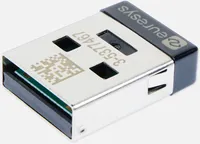
In the case of the software container, the license is strongly linked to a single computer system, while with a dongle you can move it easily from computer to computer.
When to use the offline activation
Use the offline activation when the system on which you want to activate the license is not connected to the Internet. Nevertheless, to activate the license, you must have access to another computer that is connected to the Internet.
The system that needs a license and is not connected is called the target system.
The connected system is the online system.
Both systems need to have the Neo License Manager installed.
Note
Neo USB Dongle activation This procedure works for activating both dongles and software containers. However, it is much easier to connect a dongle directly to the online system and use the online procedure.
Select a container
To select a license container, use the
list-containerscommand of the Neo License Manager. All the containers compatible with Neo Licenses are listed:> NeoLicenseManagerCL.exe list-containers Container list: 130-3613949292 (software)
A software container appears in the list with a serial number starting with
130-.A dongle appears in the list with a serial number starting with
3-. This serial number is also written on the dongle itself.
To create a software container, use the
create-software-containercommand of the Neo License Manager.> NeoLicenseManagerCL.exe create-software-container Software container 130-3245488904 has been created.
If you already have a software container on your system:
We highly recommend you to use that one.
Create a new software container only if the old one is broken for any reason. The old license container will become unavailable for activation purposes.
Copy the serial number of the container you want to use for the next step.
Activate a license
The offline license activation is a 3 steps procedure:
On the target system, retrieve the fingerprint:
To retrieve the identification information, also called the fingerprint, use the
get-container-fingerprintcommand of the Neo License Manager. This command generates a fingerprint file.
> NeoLicenseManagerCL.exe get-container-fingerprint -s 130-3245488904 -p "myfingerprintfile.fgp"
Copy this file to the online system.
On the online system, request a license activation file:
To generate the license activation file, use the
request-activation-filecommand of the Neo License Manager.Use this command with the Ticket ID and the fingerprint file of the target system.
> NeoLicenseManagerCL.exe request-activation-file "myfingerprintfile.fgp" -t TT5YY-HYAGN-Q2PBU-U7K7J-DKJJQ -p "mylicensefile.lif"
Copy this file to the target system.
On the target system, apply the license.
To activate the license in the chosen container use the
apply-license-filecommand of the Neo License Manager.Use this command with the license activation file.
> NeoLicenseManagerCL.exe apply-license-file -p "mylicensefile.lif"
Check the Neo License presence
To check the presence of the license, use the
list-licensescommand of the Neo License Manager.The new license appears under the serial number of the license container.
> NeoLicenseManagerCL.exe list-licenses

Licenses on container 130-3613949292 (software):
     Open eVision EasyOCR
Troubleshooting
Command line help
To get help about the syntax and the usage of the command line, use the
--helpargument:> NeoLicenseManagerCL.exe --help Neo License Manager 2 Usage: C:\Program Files\Euresys\NeoLicenseManager\NeoLicenseManagerCL.exe [OPTIONS] SUBCOMMAND Options: --console-log Activates console log --file-log TEXT Activates file log; a path to the desired log file must be specified as argument -h,--help Subcommands: list-containers Returns the list of containers Options: --filter TEXT:{dongle,software} Type of containers to be checked (dongle/software) -e,--expert Enables expert mode list-licenses Returns the list of licenses Options: -s,--serial-number TEXT Serial number of a specific container to be checked -l,--list-empty-containers List containers even if they contain no license -e,--expert Enables expert mode apply-license-file Applies the given activation file to the software container of your computer Options: -p,--path TEXT REQUIRED Path of the license activation file create-software-container Creates a new software container on the computer. It will only work if none were present Options: -f,--force Additional argument to enforce container creation. For expert users only delete-software-container Deletes a software container on the computer, given its serial number Options: -s,--serial-number TEXT REQUIRED Serial number of the software container to be deleted get-container-fingerprint Saves the fingerprint file of the given container at the specified location Options: -s,--serial-number TEXT REQUIRED Serial number of the software container we want to retrieve the fingerprint from -p,--path TEXT REQUIRED File path for the creation of fingerprint check-dongle-OEM-key-readiness Checks if the OEM key feature is available in the given container Options: -s,--serial-number TEXT REQUIRED Serial number of the dongle on which we want to check OEM key readiness prepare-dongle-for-OEM-key Prepares a given dongle for OEM key Options: -s,--serial-number TEXT REQUIRED Serial number of the dongle we want to prepare for OEM key check-neo-status Performs a global check-up of the Neo licensing system and print it Options: -p,--path TEXT File path for the creation of report activity-log Prints the content of the log file activate Activates a Neo ticket ID on the given container Options: -t,--ticket TEXT REQUIRED Id of the Neo ticket to be activated -s,--serial-number TEXT REQUIRED Serial number of the container on which ticket will be activated -f,--force Additional argument to enforce activation. For expert users only reactivate Reactivates a Neo ticket ID on the given container Options: -t,--ticket TEXT REQUIRED Id of the Neo ticket to be reactivated -s,--serial-number TEXT REQUIRED Serial number of the container on which ticket will be reactivated -f,--force Additional argument to enforce reactivation. For expert users only request-activation-file Generates an activation file using the given Neo ticket ID and container fingerprint file. This file can then be used to proceed to an offline activation. Options: -f,--fingerprint-path TEXT REQUIRED Path to the fingerprint of a container -p,--output-path TEXT REQUIRED Path for the generated activation file -t,--ticket TEXT REQUIRED Neo ticket Id request-reactivation-file Generates a reactivation file using the given Neo ticket ID and container fingerprint file. This file can then be used to proceed to an offline reactivation. Options: -f,--fingerprint-path TEXT REQUIRED Path to the fingerprint of a container -p,--output-path TEXT REQUIRED Path for the generated reactivation file -t,--ticket TEXT REQUIRED Neo ticket Id apply-emergency-license Activates one of the three emergency licenses packages. It has a 8 days duration. version Prints the version of Neo License Manager End message of Neo License Manager CL
Emergency licenses
If you need a license for a limited time (for instance while waiting for some support), use an emergency license.
To activate an emergency license , use the
apply-emergency-licensecommand:These licenses activate all eVision products.
They are valid for 8 days.
You can repeat this a maximum of 3 times.
For security reasons, you cannot activate emergency licenses on virtual machines.
> NeoLicenseManagerCL.exe apply-emergency-license
License recovery with a software container
If you have to reinstall the system and lost your licenses:
Create a software container.
Activate the license with the old Ticket ID to try to recover all the licenses associated to the container where you first activated this Ticket ID.
This only works if:
It is done in a new, empty container.
The system is recognizable (the hardware is more or less the same).
If this does not work, perform a reactivation.
Reactivation
If the recovery does not work or if you lost your licenses and the system has changed significantly (for instance after the failure and replacement of a hardware component), you need to perform a reactivation.
This transfers your lost license on a container on the new system.
By default, the reactivation is disabled.
Contact the support to obtain a reactivation authorization for the corresponding Ticket ID.
Once the reactivation is authorized, follow the license activation procedure described above but use the
reactivatecommand instead ofactivate.
Error reporting
If anything fails, the Neo License Manager returns an error and information about it in stderr.
To recover the
stderrlog from the command line, you can use-–file-logargument, followed by the path to a log file, as follows:NeoLicenseManagerCL.exe --file-log c:\tmp\error.log activate -t TT5YY-HYAGN-Q2PBU-U7K7J-DKJJQ -s 130-3245488904
If you need more information, use the Memento tool from Euresys.
To check the status of the licensing system on your computer at any time, use the
check-neo-statuscommand of the Neo License Manager.> NeoLicenseManagerCL.exe check-neo-status ** Starting List Product Item for box 130-3613949292 and firm code 6001261 ** Found Productcode (Dependency: 0x7): 4305 Text (#=20, Dependency 0x00): "Open eVision EasyOCR" Extended Protected Data (#=16, Type 136, Dependency 0x07): 6c 63 64 63 00 01 9b 05 00 00 00 00 00 00 01 00 ** List Product Item finished without errors **
To check the log of the licensing system on your computer at any time, use the
activity-logcommand of the Neo License Manager.> NeoLicenseManagerCL.exe activity-log ** L.M version 23.08.0 09/07/23 14:25:02 : Emergency activation was requested. L.M version 23.08.0 09/07/23 14:25:03 : Emergency activation was successful. There is (are) 2 emergency license(s) remaining. **