Extracting and Using Objects
Extracting the Objects
Use the E3DObjectExtractor::Extract .NET Python method to perform the objects extraction.
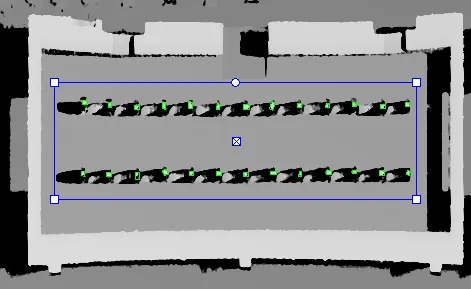
Object extraction (green boxes) in a predefined area (in blue) on a ZMap.
You can limit the extraction to an ERegion .NET Python, for example to ignore parts of the ZMap that are not interesting and/or to speed up the extraction process.
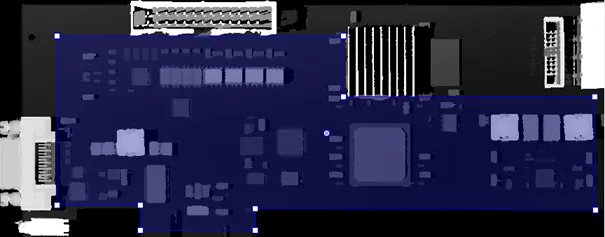
Region to limit object extraction on a ZMap.
The processing speed of the extraction depends directly on:
The number of pixels in the ZMap or in the ERegion.
The number of segmented objects.
The computer features for each segmented object.
Hint
To speed up the extraction process:
Adjust the extraction ranges to reduce the number of objects.
Disable the features you do not need.
Overlapped Objects
By default, the extraction does not produce objects that overlap on the ZMap. You must enable the E3DObjectExtractor::SetOverlappedObject .NET Python option to extract “stacked” objects.
The area ratio and the height difference parameters control how overlapped objects are extracted:
The area ratio is configured by
E3DObjectExtractor::SetOverlappedAreaRatio.NET Python. The area of the bottom object divided by the area of the top object must be larger or equal than that ratio.
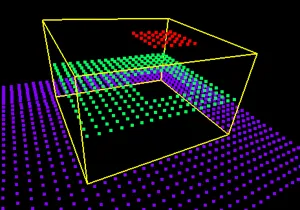
Overlapped extraction is disabled.
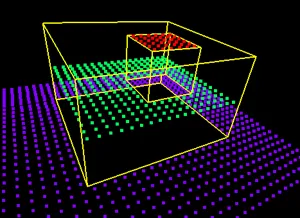
Overlapped extraction is enabled, with OverlappedAreaRatio = 4.
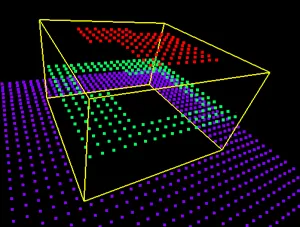
Overlapped extraction is enabled, with OverlappedAreaRatio = 4.
The top object is too large to be extracted, the ratio of the areas is lower than 4.
The height difference is configured by
E3DObjectExtractor::SetOverlappedHeightDifference.NET Python. This represent the minimum height difference between the top and the bottom object
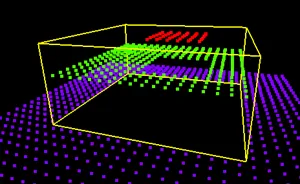
Overlapped extraction is enabled, with OverlappedHeightDifference = 2. The height of the top object (red) from the bottom object (green) is too small, the object is not extracted.
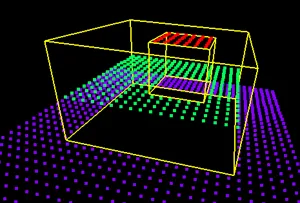
Overlapped extraction is enabled, with OverlappedHeightDifference = 2. The height of the top object from the bottom object is larger than 2, the object is extracted.
Controlling the Object Detection
Two optional parameters affect the detection of the object:
E3DObjectExtractor::SetExtractionSensitivity.NET Python controls the sensitivity of the extraction.A higher value increases the ability to detect objects that are mixed with their surrounding, because their grey values are close to the background or because the transition (the gradient) between the object and the background is smooth.
This parameter value ranges from 0 to 1 (the default value is 0.6).

Extraction sensitivity: 0.5 (left) and 0.8 (right)
E3DObjectExtractor::SetContourReinforce.NET Python affects the extraction of the objects.As the extraction can fail when objects are close or touch each other, this parameter enables a filter to enhance the frontiers between objects and enable the extraction of such objects.
The filter can affect the measurements.
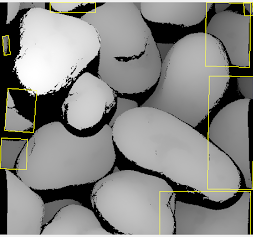 Contour reinforcement OFF.
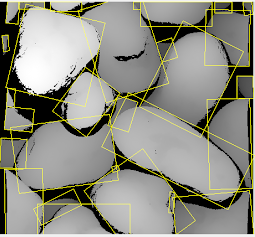 Contour reinforcement ON.
Using the Objects
The E3DObjectExtractor::Extract .NET Python method populates a list of E3DObject .NET Python fulfilling your set criteria.
Each
E3DObject.NET Python is a collection of descriptive features of the associated 3D points in theEZMap.NET Python, such as its oriented bounding box, its local height and its volume.Call the associated
E3DObject.NET Python method to access a feature.The
E3DObject.NET Python list is sorted from the smallest area to the largest area.Use
E3DObjectExtractor::GetObjectsMask.NET Python to get the mask of all the extractedE3DObject.NET Python.
Visualizing the Objects
To visualize some of these features in 2D or 3D:
Use the
E3DObject::Draw.NET Python method.Or submit a list of
E3DObject.NET Python to anE3DViewer.NET Python.
Hint
In an E3DViewer .NET Python, use the ERenderStyle .NET Python structure to choose your rendering style.
See below some examples to draw features from a list of E3DObjects:
Drawing 2D features:
#include <eVision/Easy3D/Easy3DObject/E3DObjectExtractor.h>
#include <eVision/Easy/EGenericDrawAdapter.h>
using namespace eVision;
using namespace eVision::Easy3D;
E3DObjectExtractor extractor;
// Get the list of E3DObjects
std::vector<E3DObject> objects = extractor.GetObjects();

// Get the dimensions of the 2D feature
ERegion region = extractor.GetObjectsMask();

// Get an image on which to draw the 3D objects
EImageC24A image(region.GetBoundingBoxWidth(), region.GetBoundingBoxHeight());
EGenericDrawAdapter drawContext(&image);

// Draw the ERegion of each object
int nObjects = (int)objects.size();
for (int i = 0; i < nObjects; i++)
  objects[i].Draw(&drawContext, E3DObjectFeature_ERegion, ERGBColor(0, 255, 0));
using eVision;
using eVision.Easy3D;
E3DObjectExtractor extractor = new E3DObjectExtractor();

// Get the list of E3DObjects
E3DObject[] objects = extractor.Objects;

// Get the dimensions of the 2D feature
ERegion region = extractor.ObjectsMask;

// Get an image on which to draw the 3D objects
EImageC24A image = new EImageC24A(region.BoundingBoxWidth, region.BoundingBoxHeight);
EGenericDrawAdapter drawContext = new EGenericDrawAdapter(image);

// Draw the ERegion of each object
int nObjects = objects.Length;
for (int i = 0; i < nObjects; i++)
  objects[i].Draw(drawContext, E3DObjectFeature.ERegion, new ERGBColor(0, 255, 0));
import eVision
from eVision import Easy3D
extractor = Easy3D.E3DObjectExtractor()

# Get the list of E3DObjects
objects = extractor.Objects

# Get the dimensions of the 2D feature
region = extractor.ObjectsMask

# The drawing surface
display_img = eVision.EImageC24A(width=region.BoundingBoxWidth, height=region.BoundingBoxHeight)
draw_adapter = eVision.EGenericDrawAdapter(display_img)

# Draw the ERegion of each object
for object_i in objects:
    object_i.Draw(draw_adapter, Easy3D.E3DObjectFeature.ERegion, eVision.ERGBColor(0, 255, 0))
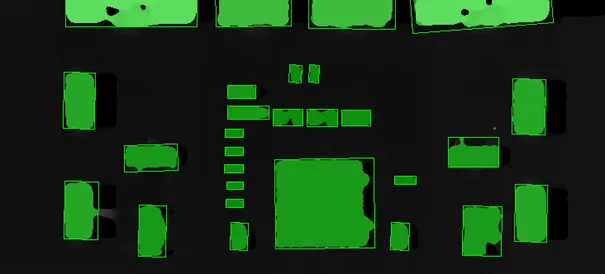
Example of objects extracted using the snippets above.
Drawing 3D features:
#include <eVision/Easy3D/Easy3DObject/E3DObjectExtractor.h>
#include <eVision/Easy3D/E3DViewer.h>
using namespace eVision;
using namespace eVision::Easy3D;
E3DObjectExtractor extractor;
// Get the list of E3DObjects
std::vector<E3DObject> objects = extractor.GetObjects();

// Register the list of E3DObjects to the 3D viewer
E3DViewer viewer3D(0, 0, 640, 480);
viewer3D.Register3DObjects(objects);


// Define and use a render style for the ReferenceTopPosition feature
ERenderStyle renderStyle;
renderStyle.pointRGB = EC24A(100, 0, 0);
viewer3D.SetFeatureStyleForAll3DObjects(renderStyle, E3DObjectFeature_ReferenceTopPosition);

// Set a different rendering color for the first object
ERenderStyle selectedRenderStyle;
selectedRenderStyle.pointRGB = EC24A(255, 255, 0);
viewer3D.SetFeatureStyleFor3DObject(0, selectedRenderStyle, E3DObjectFeature_ReferenceTopPosition);

// Enable the display of the TopZPosition feature
viewer3D.ShowFeatureForAll3DObjects(E3DObjectFeature_ReferenceTopPosition);
using eVision;
using eVision.Easy3D;
E3DObjectExtractor extractor = new E3DObjectExtractor();

// Get the list of E3DObjects
E3DObject[] objects = extractor.Objects;

// Register the list of E3DObject to the 3D viewer
E3DViewer viewer3D = new E3DViewer(0, 0, 100, 100);
viewer3D.Register3DObjects(objects);


// Define and use a render style for the ReferenceTopPosition feature
ERenderStyle renderStyle = new ERenderStyle();
renderStyle.pointRGB = new EC24A(100, 0, 0);
viewer3D.SetFeatureStyleForAll3DObjects(renderStyle, E3DObjectFeature.ReferenceTopPosition);

// Set a different rendering color for the first object
ERenderStyle selectedRenderStyle = new ERenderStyle();
selectedRenderStyle.pointRGB = new EC24A(255, 255, 0);
viewer3D.SetFeatureStyleFor3DObject(0, selectedRenderStyle, E3DObjectFeature.ReferenceTopPosition);

// Enable the display of the ReferenceTopPosition feature
viewer3D.ShowFeatureForAll3DObjects(E3DObjectFeature.ReferenceTopPosition);
import eVision
from eVision import Easy3D
extractor = Easy3D.E3DObjectExtractor()

# Get the list of E3DObjects
objects = extractor.Objects

# Register the list of E3DObject to the 3D viewer
viewer3D = Easy3D.E3DViewer(0, 0, 100, 100)
viewer3D.Register3DObjects(objects)

# Define and use a render style for the ReferenceTopPosition feature
render_style = Easy3D.ERenderStyle()
render_style.pointRGB = eVision.EC24A(100, 0, 0)
viewer3D.SetFeatureStyleForAll3DObjects(render_style, Easy3D.E3DObjectFeature.ReferenceTopPosition)

# Set a different rendering color for the first object
selected_render_style = Easy3D.ERenderStyle()
selected_render_style.pointRGB = eVision.EC24A(255, 255, 0)
viewer3D.SetFeatureStyleFor3DObject(0, selected_render_style, Easy3D.E3DObjectFeature.ReferenceTopPosition)

# Enable the display of the ReferenceTopPosition feature
viewer3D.ShowFeatureForAll3DObjects(Easy3D.E3DObjectFeature.ReferenceTopPosition)
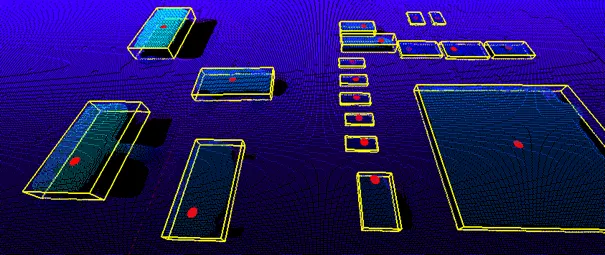
3D features drawn using the snippets above.